How to Read PDFs at Night Without Straining Your Eyes
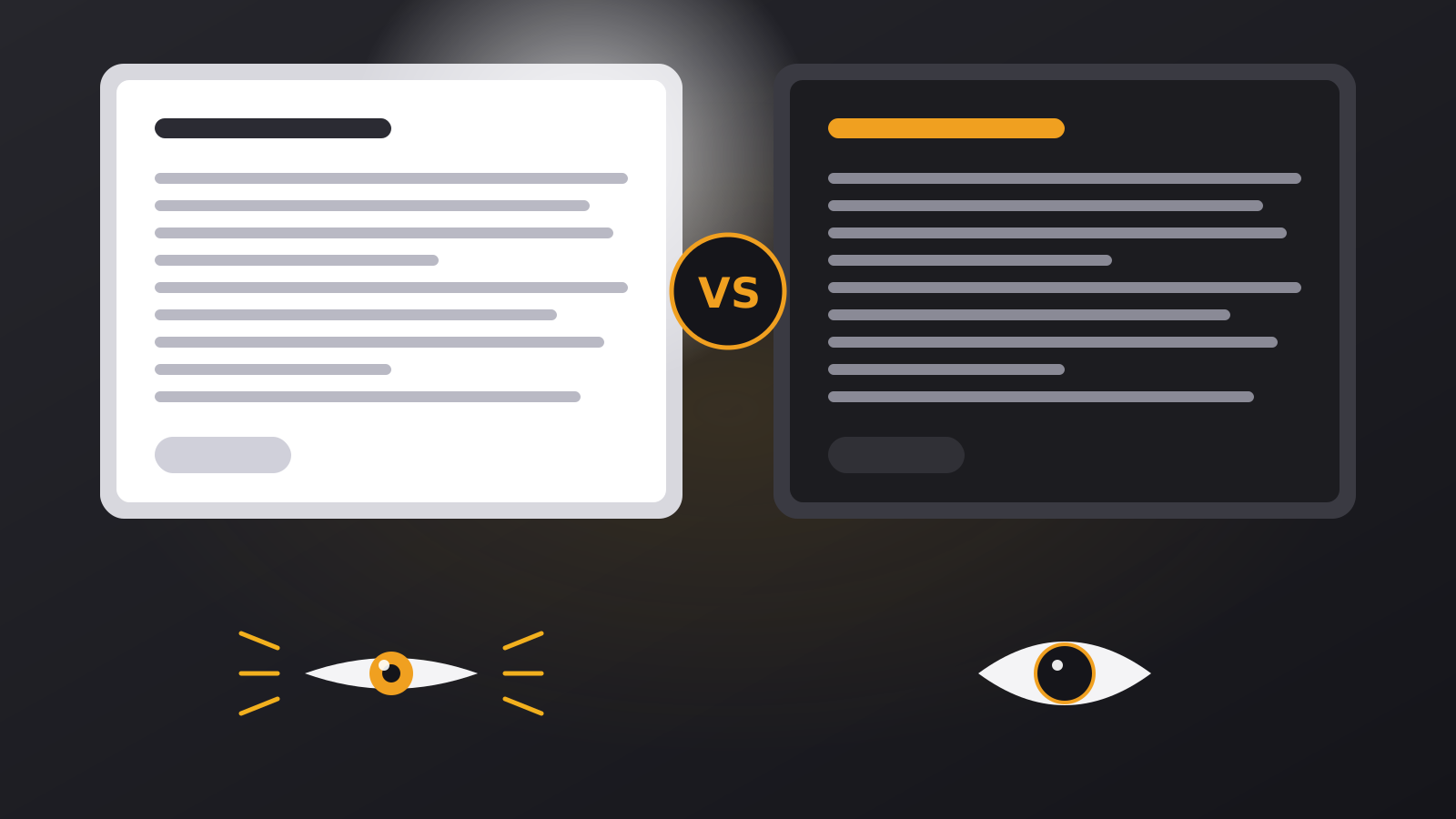
A web page can have a night mode. A PDF usually cannot. It is a fixed white sheet, and that is why a late-evening reading session with one feels so much harsher than the same time spent on a website.
Why PDFs are the hardest documents to read in the dark
PDF stands for “portable document format”, and portable means fixed. A PDF carries its own page colour, fonts and layout, and the program that opens it is supposed to show them exactly as they were made. That is great for contracts and printed forms. It is not great for your eyes at midnight, because the page is almost always white.
Websites can follow your system theme. Browser extensions can darken them. A PDF viewer built into a browser or a phone usually has no such option, so the page stays at full brightness while everything else on your screen has gone dark.
Four ways to make a PDF easier to read at night
1. Lower the screen brightness
The simplest fix is also the most overlooked. A white page at 100% brightness in a dark room is a lot. Reduce it until the white page looks like paper under a reading lamp rather than a lightbulb. This helps with every method below.
2. Use the dark option in your viewer, if it has one
Some desktop and mobile PDF viewers include a night or inverted mode. It is worth checking the view menu. The catch is that many of them simply invert every colour, so photos turn into negatives and charts become hard to read.
3. Darken the page with a browser extension
Extensions can darken a PDF opened inside the browser, but they treat it as a picture and can blur small text or flip the colours of images. They are a quick fix, not a careful one.
4. Open the file in a reader built for dark reading
A dedicated reader draws each page itself, so it can change the tone of the page without touching your file. This is the approach our Dark PDF Reader takes: it works in the browser, offers five tones and never uploads the document.
What to look for in a dark PDF reader
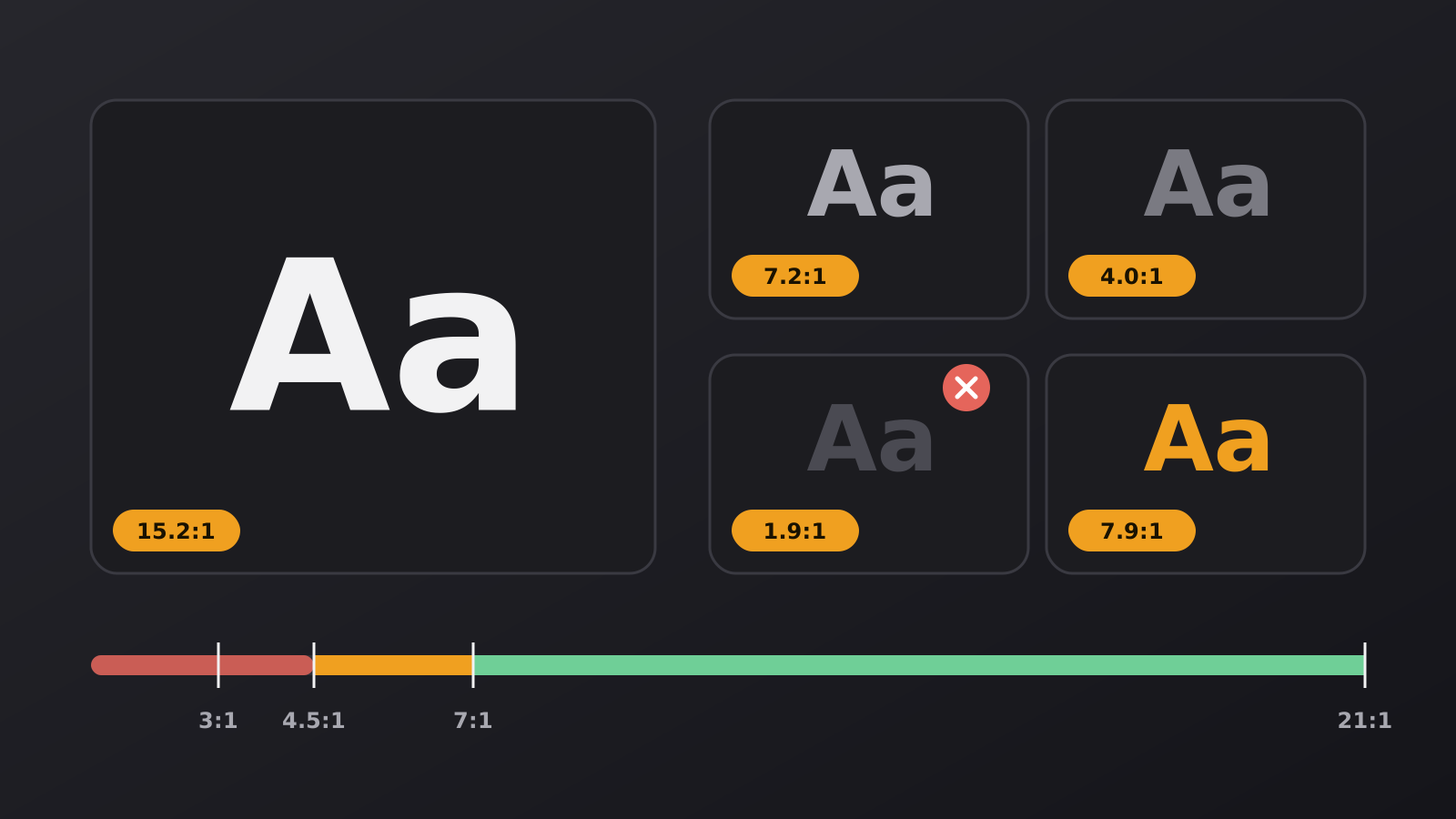
- Readable text. The text should stay sharp and have enough contrast. A dark theme that dims everything into grey is not an improvement.
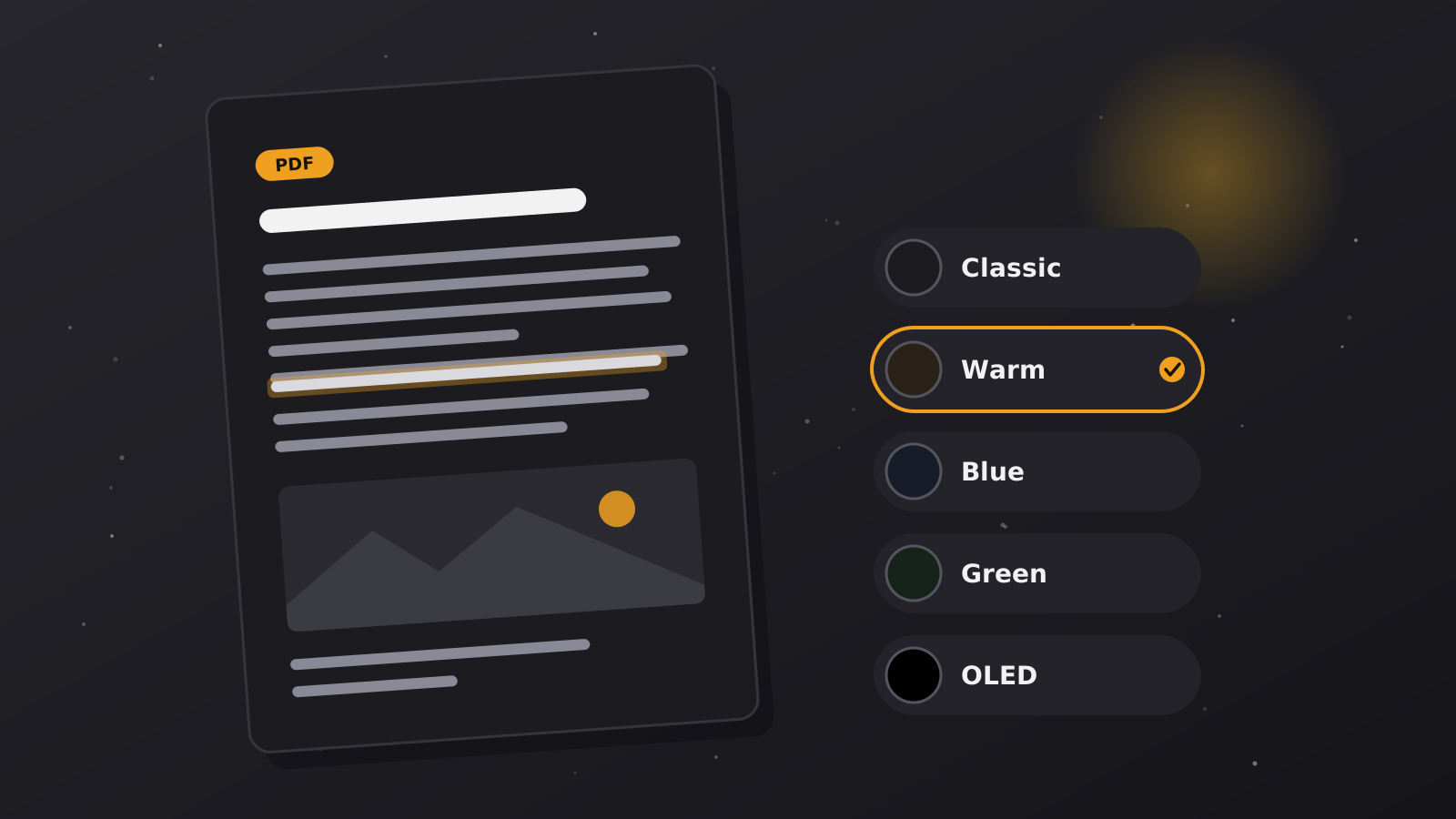
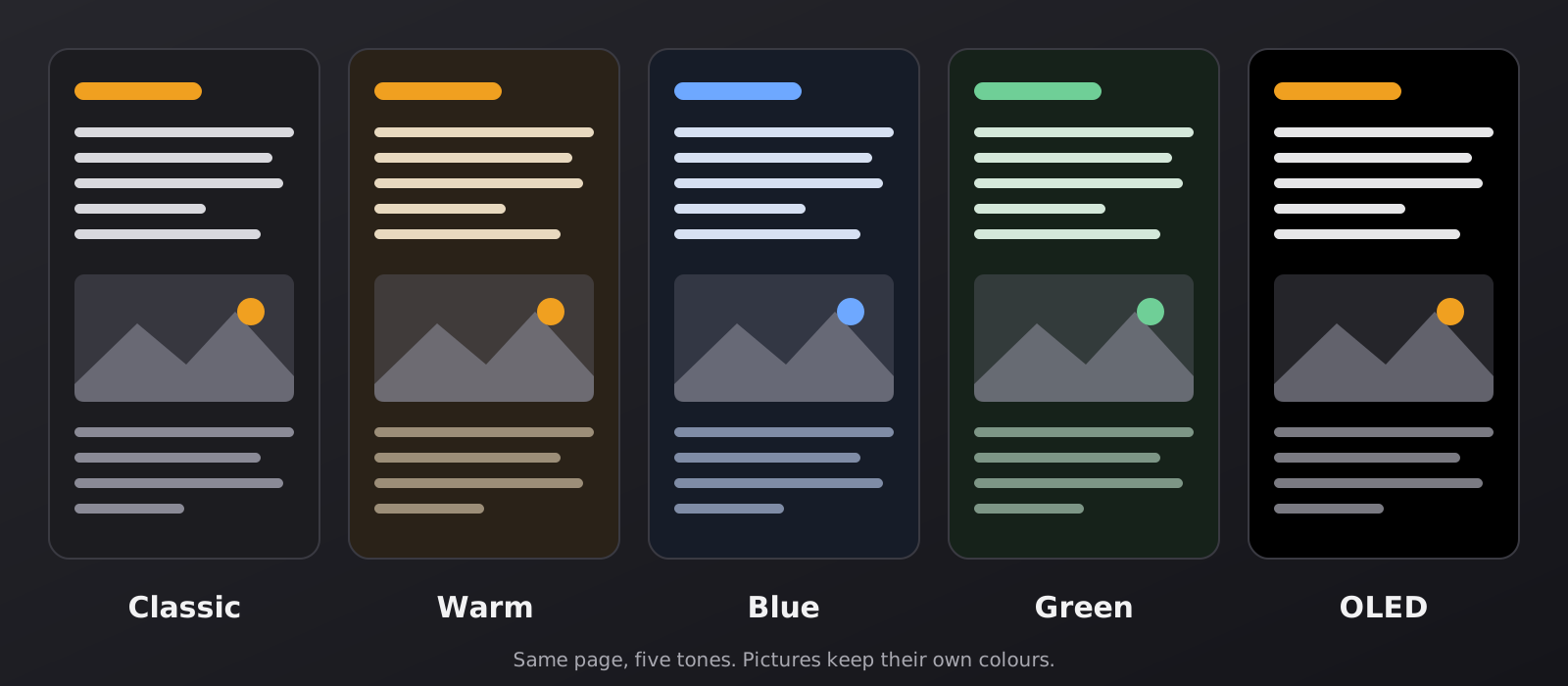
- More than one tone. A neutral dark suits a lamp-lit desk. A warm tone feels gentler very late. OLED black looks best on an OLED screen.
- No changes to your file. The tone should apply only while you read. Your original PDF should stay exactly as it was, so you can send it to a colleague without a surprise.
- Privacy. Many PDFs are contracts, medical letters or school work. A reader that does the work on your device means nothing leaves your computer.
- Everyday tools. Zoom, page jumps and highlights are what turn a viewer into something you can study with.
A simple setup for a long evening with a PDF
- Open the file in the Dark PDF Reader by choosing it or dragging it onto the page.
- Pick a tone. Start with Classic. If the room is very dim, try Warm or OLED.
- Set the zoom so you can read without leaning forward. A comfortable line is usually a bit larger than you think.
- Highlight as you go. Drag over a passage to mark it, and click a mark to remove it. You can come back to the important parts without rereading everything.
- Save it if you will return. If you press the save button, the file goes into My Library, which keeps it, with its highlights, in your browser on this device only.
- Take breaks. Look up from the page every twenty minutes or so.
What about scanned PDFs?
Scans are the hardest case. A scanned PDF is a photograph of a paper page, often with a grey or yellowish background and uneven lighting. A dark tone will still make it calmer, but the text can only be as sharp as the scan. If you have the choice, ask for a text-based PDF, which stays crisp at any zoom and gives a much better result in a dark reader.
Small habits that help
- Turn on a soft lamp behind or beside the screen so the room is not completely black.
- Reduce the screen brightness until white elements stop feeling like a light source.
- Increase the zoom instead of squinting at small print.
- Stop for the night when the words begin to swim. No chapter is worth a headache.
Make your screens a little calmer
Darken websites with the free extension, or open a document in a dark reader that keeps your file on your device.