
Capture only what you need
Use Capture screen to pick one window or tab instead of the whole display. A smaller picture is easier to read on a dark page and shares faster.
Capture pages and screens with a dark tone, ready to share. Open a screenshot or capture your screen, darken it to sit calmly on a dark page, add a frame and a caption, then save a PNG. Everything is processed on your device.
Drop a screenshot here
PNG · JPG · WebP · or capture the screen · local only
Runs in your browser · No account · Nothing is uploaded
Darken bright screenshots so they sit calmly on a dark screen.
Take a screenshot of a page, a chart or a window, or capture your screen with one click. The tool darkens the image, can invert a white page into a dark one, and adds an optional frame and caption so the picture is ready to send.
Crop and rotate the picture, add arrows, outlines and highlights, or combine several screenshots into one image. Drag the slider above the panel to compare the original with the dark result. The check on the right shows the size and the average brightness before and after, so you know the picture is not too dark to read.
Use it when you paste captures into notes, chats or documents that already use a dark theme — the adjusted PNG keeps glare down without changing the original file on disk.
Nothing is uploaded. The screenshot is processed on this device. Settings are remembered in this browser, and Download or Copy gives you a PNG at the full size of the image.
Capture, crop, mark, combine and darken screenshots without leaving the page.
Pick a window, a tab or the whole screen once. The frame is taken in your browser and nothing is sent anywhere.
Lower the brightness of a bright page, or invert a white page so the text turns light on a dark background.
Add a dark frame with rounded corners and a short caption under the image. Set the padding with one slider.
Classic, warm, blue or OLED black. The tone sets the colour of the frame and of the page around the image.
Turn the screenshot a quarter turn at a time, then drag a box to keep only the part you need.
Add up to twelve screenshots and place them side by side, stacked or in a grid, with one darkening and one frame for all.
Point at a button or a number with an arrow, outline a part of the page, or highlight a line. Pick the colour for each mark.
Copy the result to the clipboard to paste it into a chat, or save it as a PNG at the full size of the screenshot.
Measures the screenshot and sets the darkening for you. Change any slider afterwards by hand.
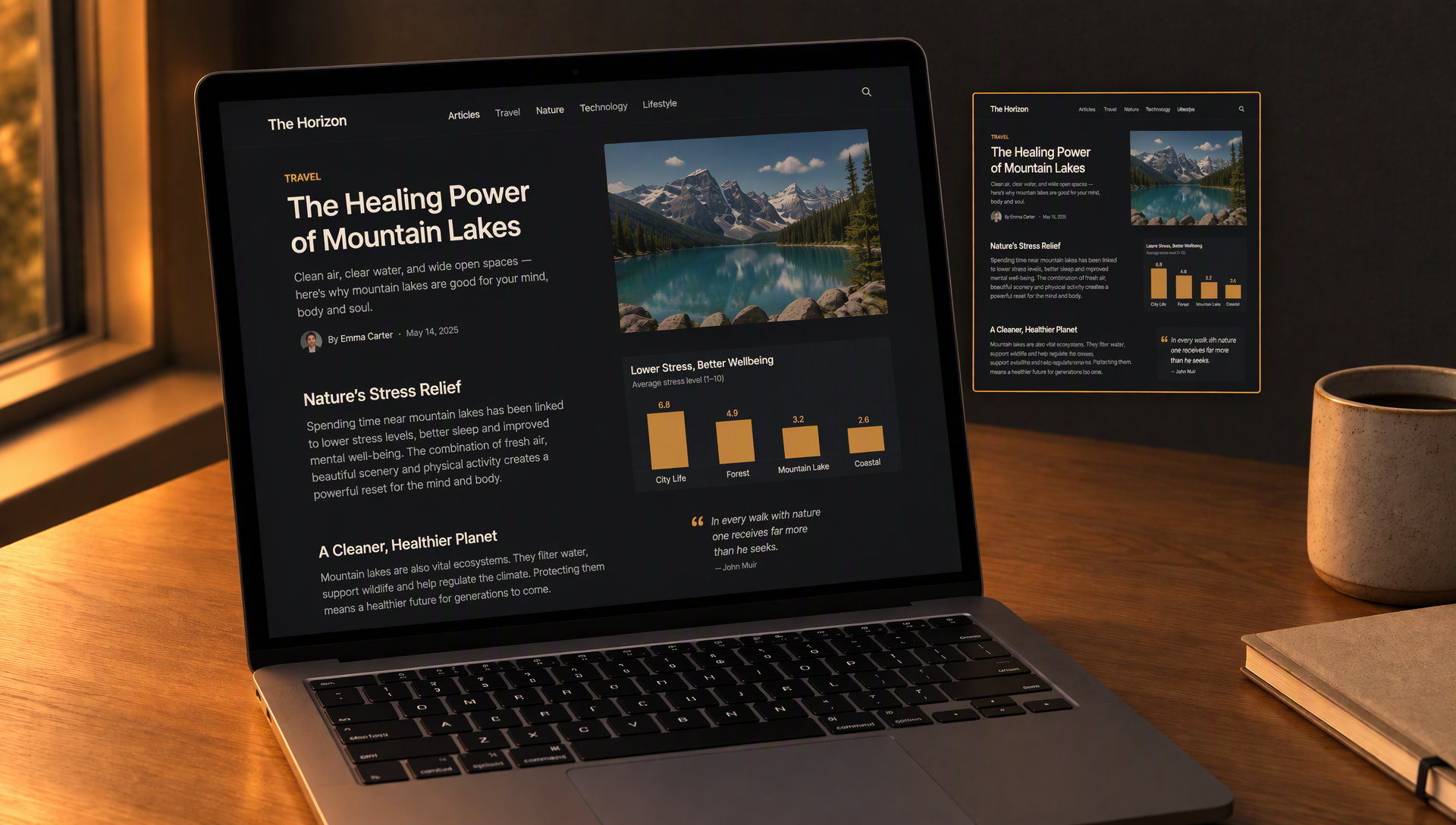
Drag the handle to compare the same desk with a bright page on the laptop and with the dark result. The layout, the mug and the notebook stay the same, only the colours and the light change.
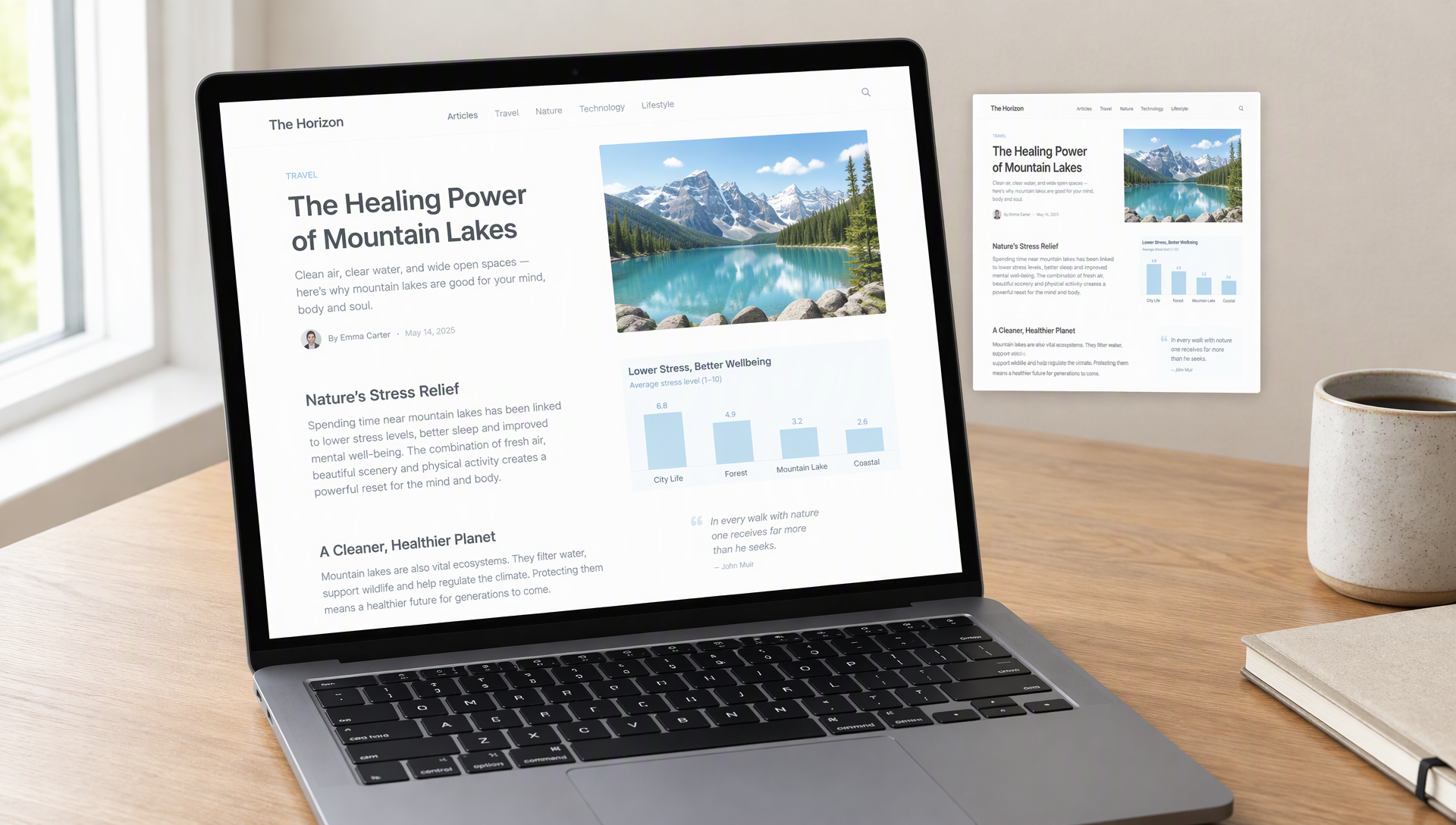
A screenshot is usually a bright page. Pasted into a dark note or a dark chat, its white background pulls the eye and makes the text around it look dim. A darker version keeps the same content and stops the glare, so the picture belongs to the page instead of fighting it.
The adjustments are small. Darkening keeps the detail of the text and the charts, inverting turns a white page into a dark one, and the frame sets the screenshot apart from the text without a harsh edge. Drag the handle on the image above to see the change.
A screenshot should still explain the same thing after its colours are adjusted. Before saving a darker version, compare small interface labels, selected controls and any warning colours with the original, especially if the image will be used in a tutorial or support message. Avoid treating photographs inside the screenshot as if they were flat interface backgrounds: a strong inversion can make them misleading. A well-matched result sits naturally on a dark page while keeping the details a reader needs to follow the example.
Practical habits for screenshots you keep, send or paste into your notes.
Use Capture screen to pick one window or tab instead of the whole display. A smaller picture is easier to read on a dark page and shares faster.
A white web page or a document turns into a clean dark page when inverted. A photo inverted looks like a negative, so for photos use only the darkening slider.
The frame and caption tell the reader what the picture shows. Add a short caption with the page name or the date, then download the PNG.
Download writes a new PNG and leaves the original file unchanged. Keep the original for records and print, and send the dark version to people who read on dark screens.
Three steps from a bright screen to a picture ready to share.
Answers about capture, crop, marks, combining and what the page keeps.
No. The image is read and changed in your browser. It is not sent to a server, and nothing is stored after you close the page.
Your browser asks which window, tab or screen to share. One frame is taken and the sharing stops straight away. Some browsers or devices do not allow screen capture, and then the tool tells you to open an image instead.
Yes. Use Add image to add up to twelve screenshots, pick a grid, side-by-side or stacked layout, and download one PNG. Darkening, the frame and the caption apply to the whole picture.
Yes. The download, Copy and the preview use the same result, so the crop, the rotation and the marks are in the PNG exactly as you see them. Marks are drawn above the darkening, so their colour stays as you picked it.
Download and Copy save a PNG. You can open PNG, JPG and WebP files, and mix them in one combined image.
The preview is reduced to fit the panel. The download is made at the full size of the screenshot, with the same darkening and frame.
The tone, the sliders, the frame and the caption are saved in this browser. The screenshot itself is not saved.
Yes. There is no account, no limit on the number of screenshots and no watermark.
Other tools in the same dark layout, for the rest of your reading and work.