



How the samples work
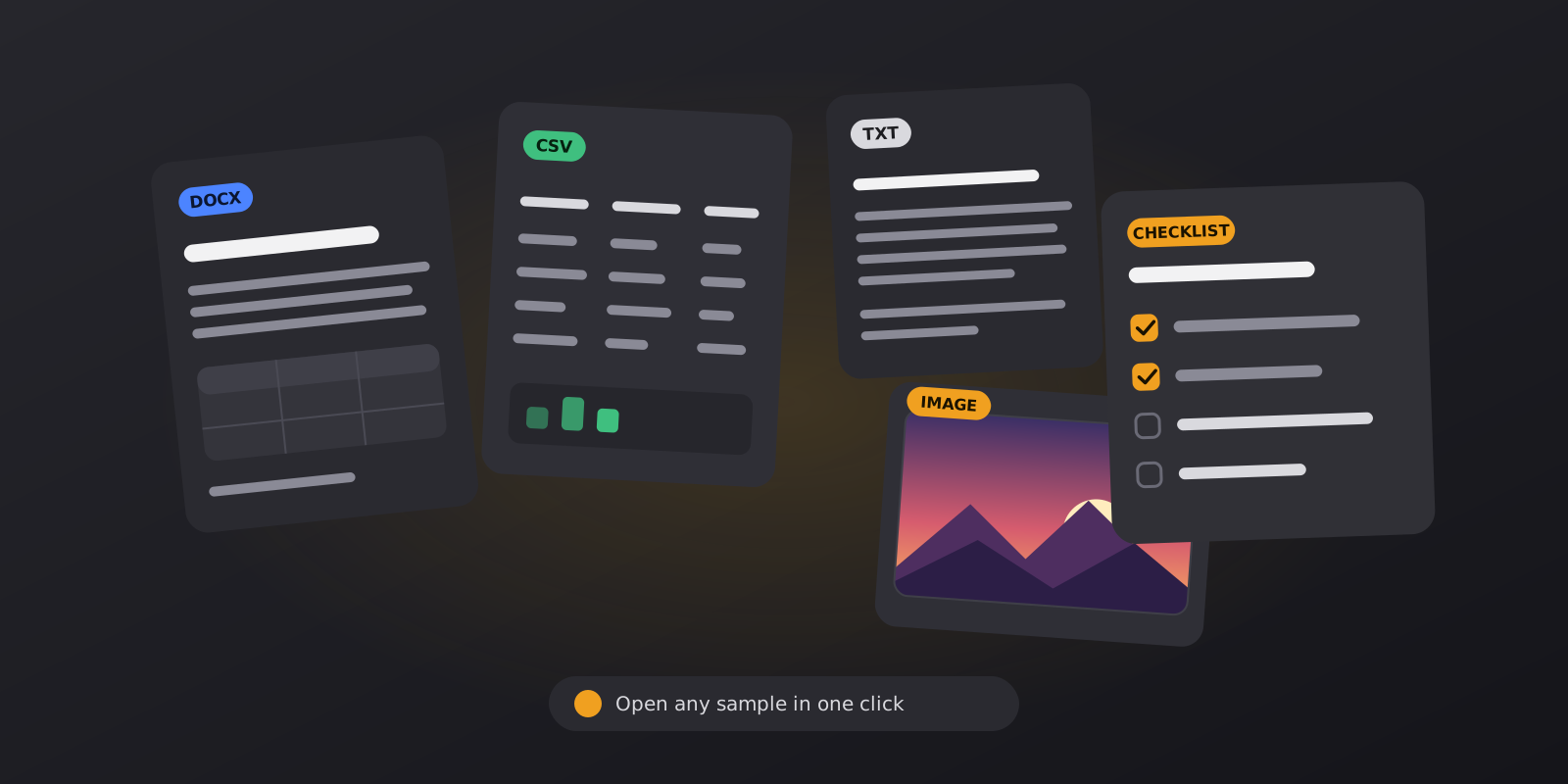
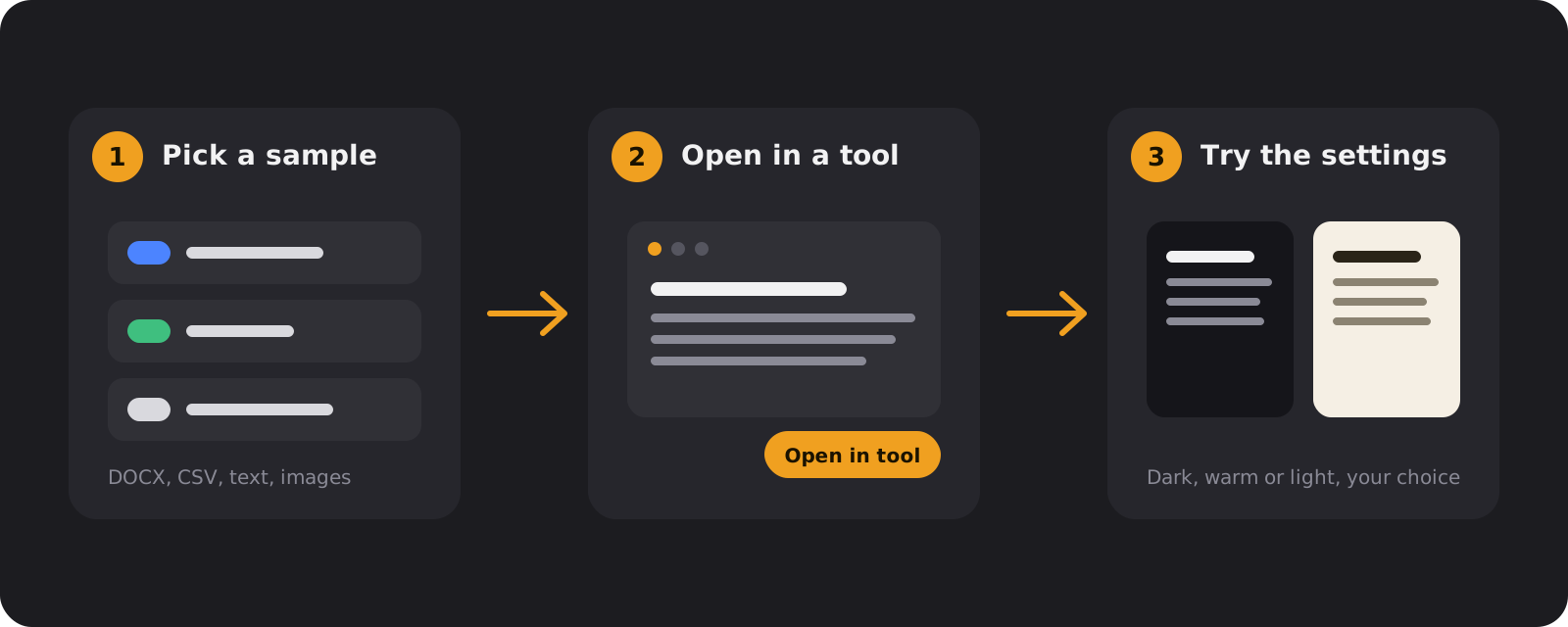
Choose a file, press the button and the tool opens with the sample already loaded. From there you can change the theme, text size, spacing or colours and see the result at once. When you are happy with the settings, open a file of your own and the same settings apply.
Which sample for which tool
- DOCX: the DOCX Reader shows headings, lists and tables. Try different themes and line spacing on the report.
- CSV and Excel: the CSV / Excel Viewer opens the sales table and the two-sheet budget. Switch between sheets and search the rows.
- Text and Markdown: the Text Reader is the best place to compare text sizes on the story and the article.
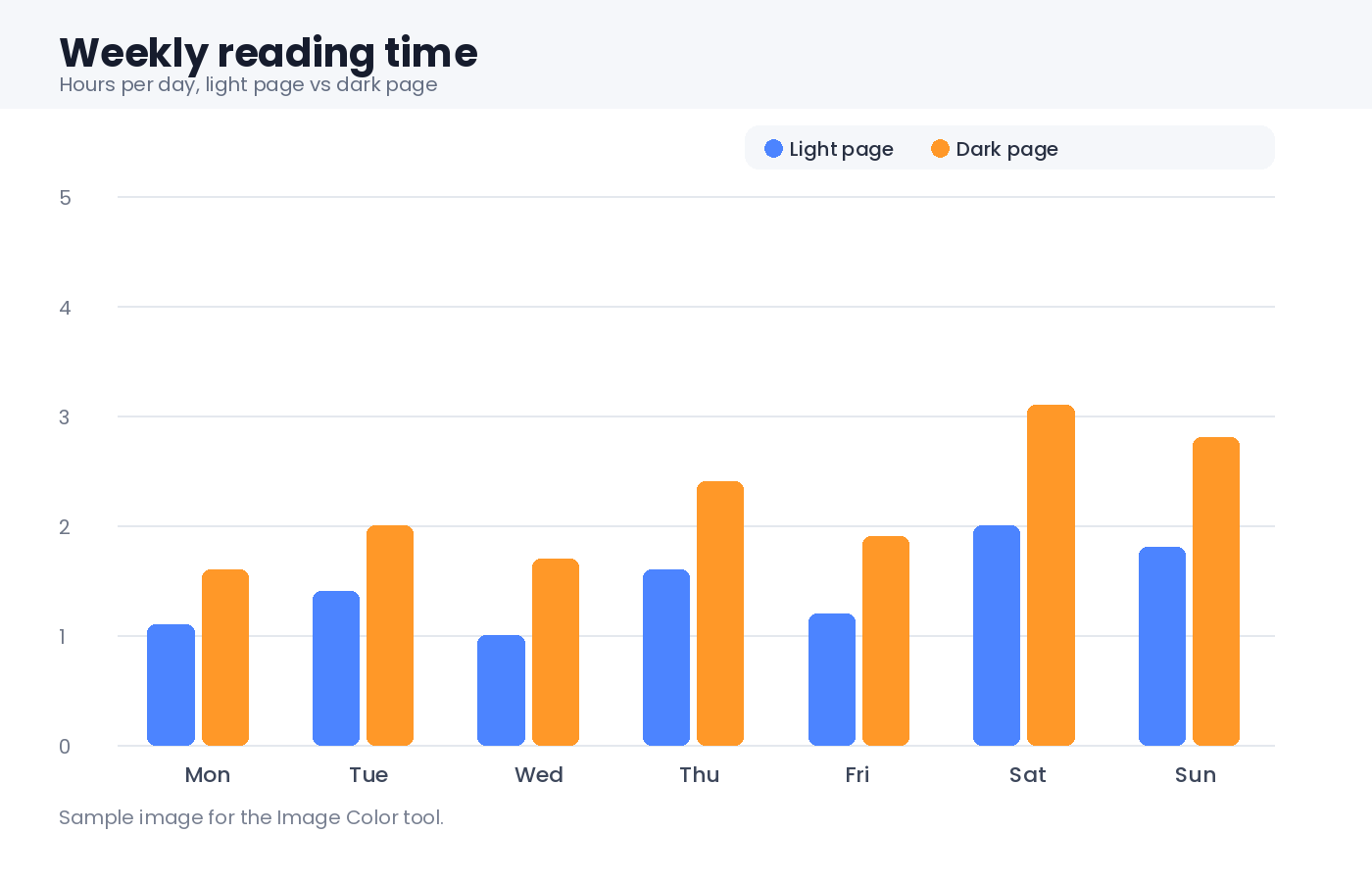
- Images: Image Color works well with the bright chart, which is the kind of picture that looks too white on a dark page.
Using the templates
Templates are plain Markdown. In Dark Notepad a template becomes a new note with a title and tags, ready to type in. Lines that start with - [ ] turn into tick boxes in Preview, so a checklist can be used right inside the page. If you prefer another notes app, copy the text or download the file and paste it there.
Want to adapt a template? Change the headings, remove what you do not need and keep what works. A good template is short, and the best one is the one you actually fill in. For longer sessions with the screen, pair a template with a theme from the Theme Gallery and a break timer from the Focus Timer.