
CSV encoding
Most UTF-8 CSV files open cleanly. If special characters look wrong, re-export the file as UTF-8 from your spreadsheet app and try again.
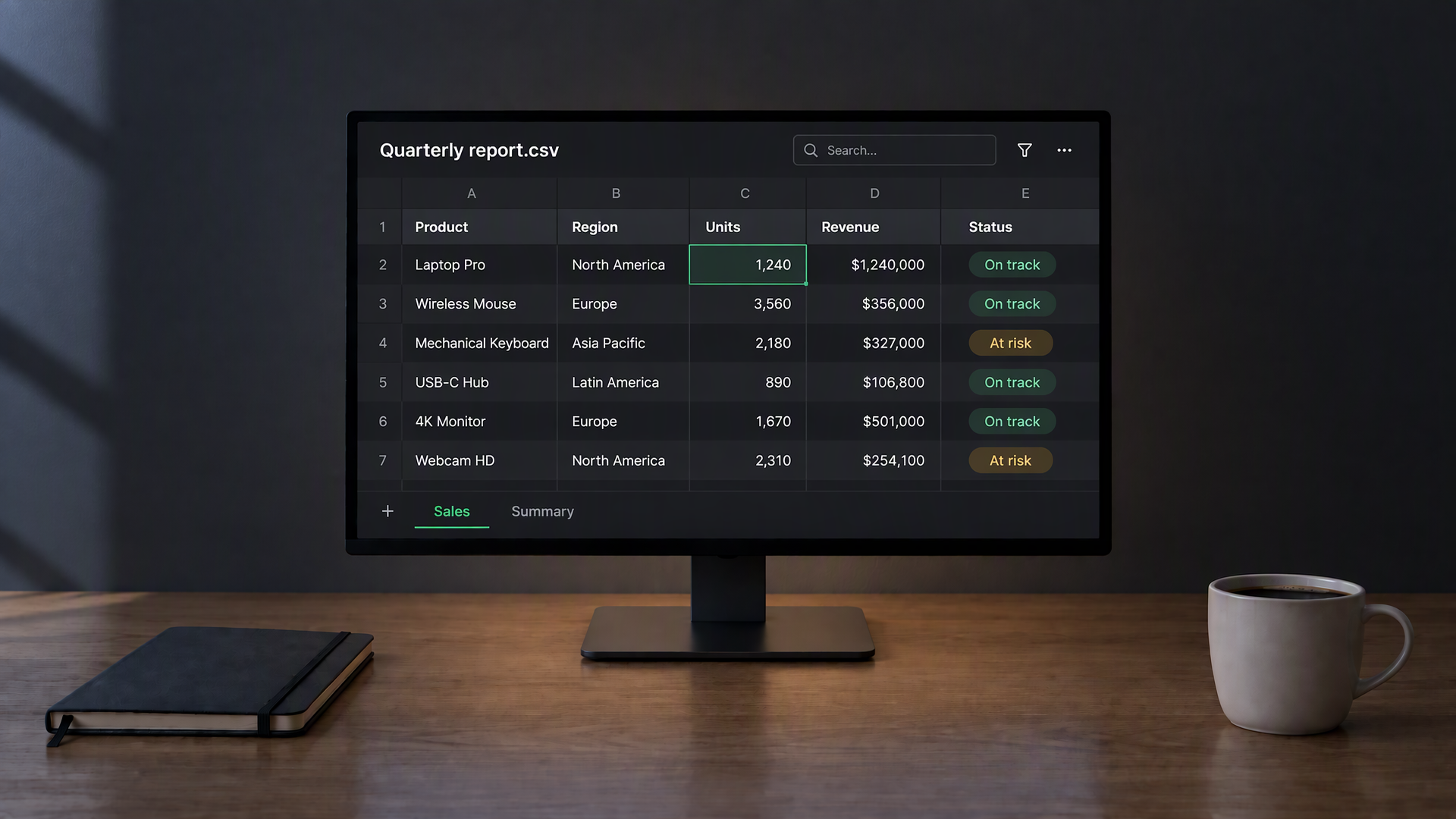
Open spreadsheets in a dark table view. Read .csv and .xlsx locally without the bright white grid.
Drop a CSV or Excel file here
CSV · XLSX · XLS · up to 25 MB · local only
Local processing in your browser · No account · No upload required
Choose a column to inspect the filtered rows.
Read-only view · Formulas use cached Excel values; no recalculation · CSV export includes all filtered rows, not only this page. Formula-like text is escaped for spreadsheet safety.
A dark table view for the spreadsheets you open every day.
CSV and Excel files almost always open as a bright white grid. When you only need to read or check a few columns, that glare is unnecessary. This viewer opens .csv and .xlsx in your browser and shows the data on a dark table surface that matches the rest of this site.
Choose a file or drop it onto the page. For workbooks with several sheets, pick the one you need from the toolbar. Search all columns or a selected column, sort using keyboard-accessible headers, and browse every row with pagination. Switch header detection, wrap long text, inspect numeric column statistics or export all filtered rows to CSV. Nothing is uploaded: parsing runs locally with open libraries in the tab.
The tool is for viewing, not editing. Your original file on disk stays unchanged. When you need formulas or full Excel features, open the same file in your usual spreadsheet app.
Use it for quick checks of exports, shared lists and report tables — any time a full spreadsheet window is more than you need and a calmer dark grid is enough.
Read tables without the white sheet.
Open .csv with Papa Parse and .xlsx with SheetJS. Both stay in the browser; no server conversion.
Workbooks list every sheet in a selector. Switch tabs without reopening the file.
Type in the filter box to keep only rows that match. Useful on long exports.
Click a header to sort ascending or descending. Click again to reverse the order.
Headers, zebra rows and sticky first row stay readable on a dark surface without a white page flash.
File bytes never leave the device for viewing. Close the tab and the in-memory table is gone.
Drag the handle to compare a bright spreadsheet surface with the dark table this viewer uses.
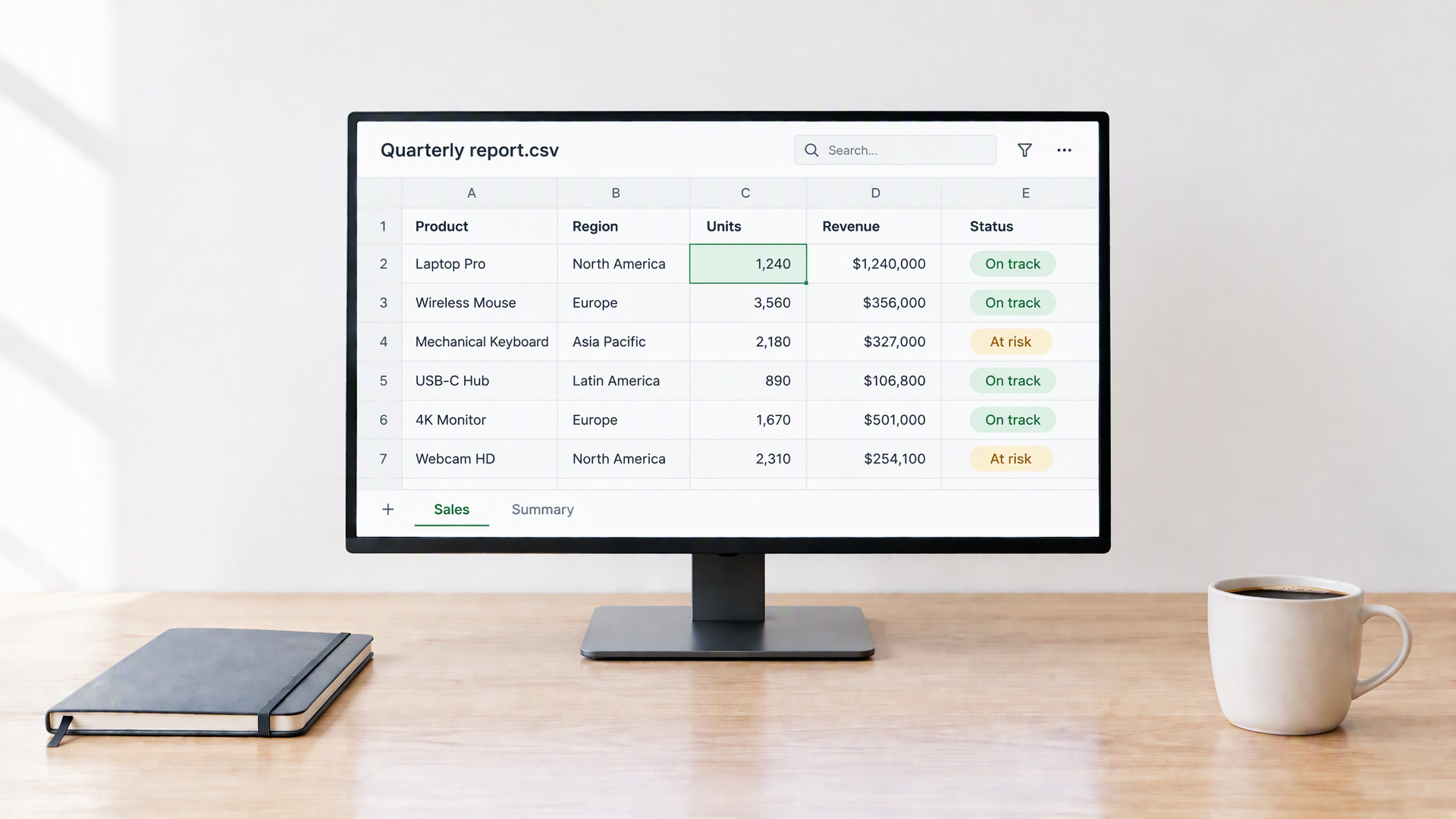
Exports, reports and shared lists spend a lot of time on screen. A white grid is fine for editing cells; for reading columns late in the day it is often brighter than everything around it. A dark table keeps numbers and labels legible while lowering the overall flash.
This viewer is a reading surface, not a full spreadsheet. It will not calculate formulas or chart data. It will open the file, show rows and columns clearly, and let you filter and sort while the file stays on your device.
A calm table is most helpful when it makes an export easier to inspect, not just darker to look at. Narrow the view with a column-specific search, sort the field you want to compare and use the row count to check how much data remains. For a numerical column, the summary can help spot an unexpected range or missing values, but mixed currencies and percentage values still need context. When you export the filtered result, keep the original workbook nearby so the smaller CSV remains a working extract rather than a replacement for the source.
Practical notes for CSV and Excel files.
Most UTF-8 CSV files open cleanly. If special characters look wrong, re-export the file as UTF-8 from your spreadsheet app and try again.
Very large workbooks depend on browser memory. Filtering and sorting still work, but the first open may take longer on big sheets.
Excel formulas are shown as calculated values when SheetJS provides them. The viewer does not recalculate a workbook from scratch.
Parsing runs in the tab. Closing the page clears the in-memory table. Your disk file is never rewritten by this tool.
Three steps from a file to a dark grid.
Formats, limits and privacy.
.csv and .xlsx are the main targets. Older .xls may open when SheetJS can read them; password-protected workbooks are not supported.
No. CSV is parsed with Papa Parse and Excel with SheetJS entirely in the browser. There is no upload step for viewing.
No. This is a viewer. Editing, charts and macros belong in Excel, Google Sheets or another full spreadsheet app.
It depends on your browser’s memory. Typical reports and exports open fine. Multi-hundred-megabyte workbooks may be slow or fail; try exporting a single sheet as CSV if that happens.
Yes. There is no account and no limit on how often you open a file here.
No. Filter and sort only affect what you see in the table on this page. Closing the viewer leaves your original CSV or Excel file exactly as it was on disk.
Papa Parse auto-detects common delimiters. If a file still looks wrong, re-export it as a standard comma-separated UTF-8 CSV from Excel or Google Sheets and open the new copy.
Yes. Download the sheet as .xlsx or .csv from Google Sheets, then open that file here. The viewer does not connect to Google accounts or cloud storage.
Other tools in the same dark layout, for the rest of your reading and work.