EPUB Reader

Open an e-book and read it in a dark, calm layout. Chapters, search, bookmarks and four tones, all running in your browser.

EPUB tool

Dark EPUB Reader

Drop an EPUB file here

EPUB 2 and EPUB 3 · DRM-free books · local only

Parsed locally in your browser · No account · No upload required

What is the EPUB Reader?

A dark reading room for e-books, built into this page.

EPUB is the open e-book format used by most publishers and many libraries. An EPUB file is a small package of web pages, images and a table of contents, so the text can reflow to fit any screen. That flexibility is also why so many e-books open on a bright white page that nobody chose on purpose. The EPUB Reader on this page opens these books and gives you control over how they look.

Open a file and the reader unpacks it inside your browser tab. It reads the table of contents, puts the chapters in their intended order and draws them with the tone you pick. Classic, Warm, Blue and OLED black are ready to use, and the text size and typeface can change at any moment without reloading the book. Nothing is sent to a server. The publisher's own style sheets are set aside, so every chapter follows the tone you chose rather than a white page someone else designed.

The reader is meant for long novels, technical manuals and collections of essays alike. Chapters are drawn one at a time, so a large book stays responsive. A progress bar, an estimate of reading time and a list of bookmarks help you pick up where you stopped, including the next time you open the same file in the same browser.
What the EPUB Reader Does

Reading tools that go beyond turning pages, all in one dark layout.

Chapter navigation

Move with the chapter menu, the arrow buttons or the left and right arrow keys. The menu always shows the chapter you are in.

Full-book search

Search every chapter at once. Each result shows its chapter and a line of context. Click one to jump to the match, which is marked on the page.

Bookmarks

Save a place with one click. A bookmark keeps the chapter and the scroll position, and you can return to it from the side panel.

Remembers your place

The last chapter and scroll position are saved for each book in this browser, so reopening it continues where you stopped.

Length and time

See the word count of the whole book, an estimate of reading time, and how much time is left from your current chapter onward.

Tones and type

Four dark tones and text sizes from 15 to 26 pixels. Switch between serif and sans-serif type while you read.

Light page or dark page

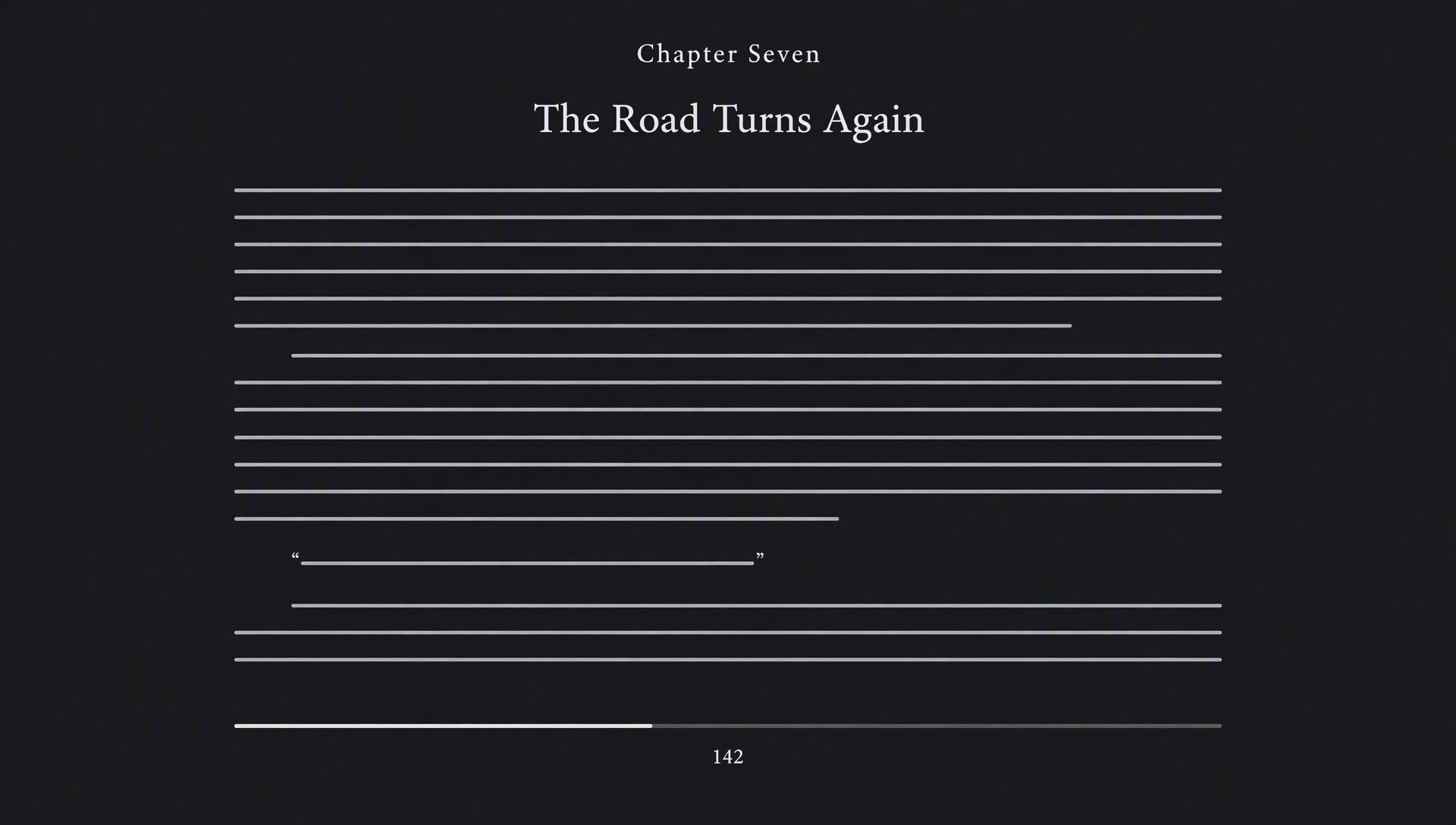
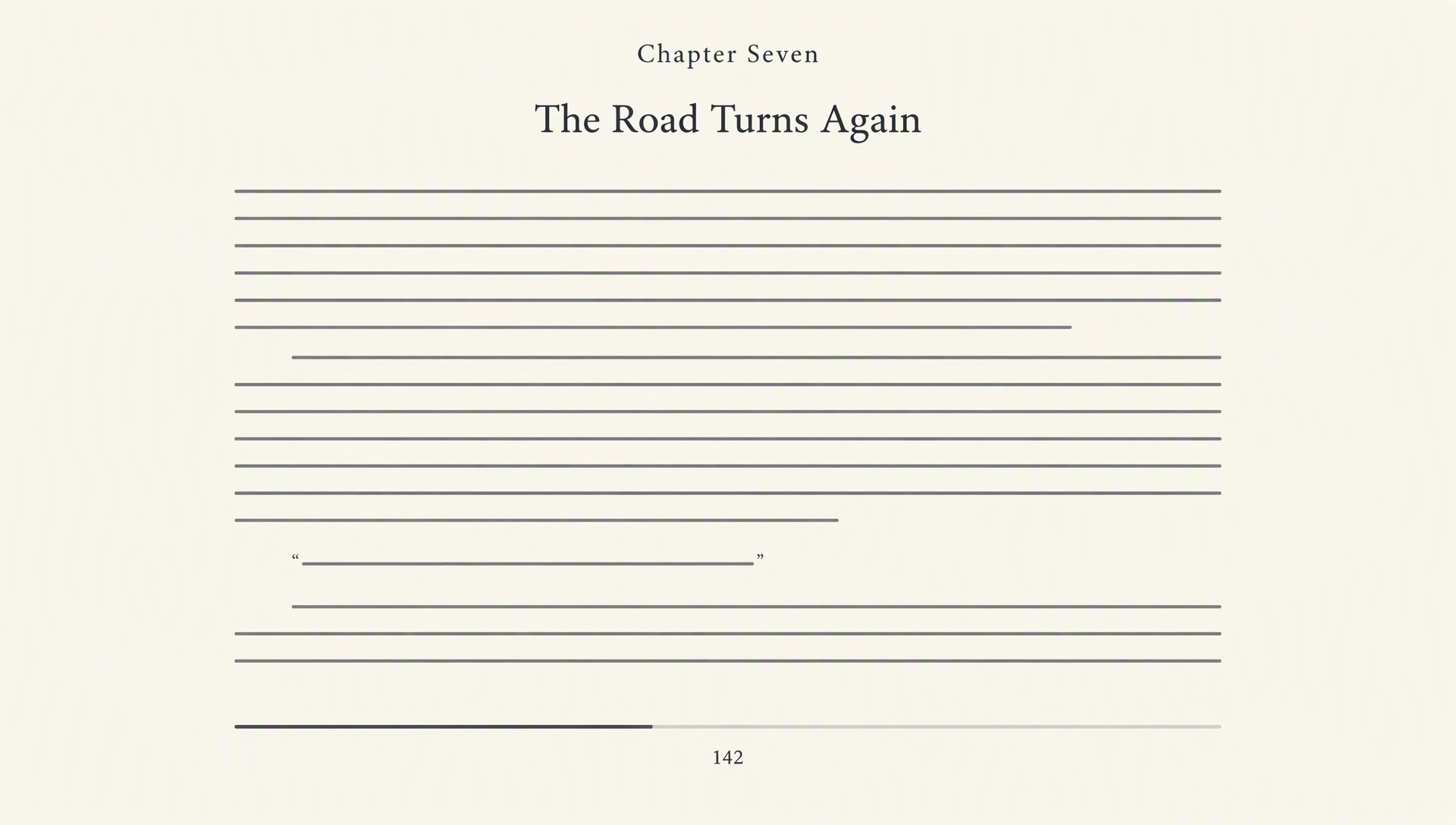
Drag the handle to compare the same kind of chapter in a bright tone and in the dark tone the reader uses.

A text page in a bright tone
Light Dark

Why the comparison matters

Most e-book readers default to a white page because white is what a printed book looks like in a bright shop. On a phone or laptop in a dim room, that white page is far brighter than everything around it. The eyes adjust, the pupils narrow and the page starts to feel heavy after a few chapters. The slider above shows the same kind of text in both tones. Drag it slowly and notice how the glare fades while the letters stay easy to pick out.

The dark view is not a filter pasted on top of the book. The text colour, the background and the link colour are chosen together, so contrast stays high. The reader keeps the paragraph spacing and headings of the book, which means a chapter in the dark tone still reads like the same chapter, only calmer.

Reading Long Books in the Dark

Practical notes for novels, textbooks and reference books that take days to finish.

Choosing a tone for the hour

Classic is a neutral dark grey that suits most rooms. Warm leans toward amber and works well after sunset, when a cool white light would disturb the rhythm of sleep. Blue is a slightly cooler dark that suits daytime reading in a bright room. OLED black turns the background fully off on screens that have OLED panels, which saves battery on phones and makes high-contrast text look sharp. Try each for one chapter, then keep the one you return to without thinking about it.

Size and typeface

Text size is a personal choice, and it should be set once and left alone. The reader lets you move from 15 to 26 pixels in single steps, and the serif or sans-serif setting applies to the whole book at once. Serif type suits long fiction, because the small strokes at the ends of letters guide the eye along a line. Sans-serif type suits technical books with short sentences, tables and code. A slightly larger size is often more comfortable in dark tones than in light ones, because light text on a dark background looks thinner to many readers.

Using bookmarks and search

A bookmark is most useful at the moment you stop, not the moment you start. Press Bookmark when you close the book for the evening and the next session begins at the same paragraph. Search is the other half of long reading. When you remember a character or a term but not the chapter, search the whole book, then open the result and read the surrounding text. Both tools work without leaving the page, so the book stays in one place.

Pacing a large book

The side panel shows the word count and an estimate of reading time, based on an average adult pace of about 230 words per minute. The figure is a guide, not a promise. Technical books, dense essays and poetry take longer, and dialogue-heavy fiction takes less. Use the time left from your current chapter as a planning tool: it tells you whether a chapter fits before dinner or whether it is better to stop at a clear break and bookmark it.

How to Read an EPUB Here

Three steps from a file on your device to a comfortable chapter.

  1. Add your EPUBPress “Choose file” or drag an EPUB into the area above. The book is unpacked in your browser tab.
  2. Set the tone and typePick Classic, Warm, Blue or OLED black, then adjust the text size and serif or sans-serif type.
  3. Read, search and bookmarkMove between chapters, search the whole book and save a bookmark before you close the tab.

Frequently Asked Questions

Answers about file formats, privacy and what the reader saves.

Which EPUB files can I open?

EPUB 2 and EPUB 3 files that do not use DRM. Most public-domain books, many DRM-free purchases and files you export yourself will open. Books locked with Adobe DRM or another copy protection cannot be unpacked, so the reader cannot display them. Fixed-layout books, such as comics and some textbooks, open too, but their pages are not reflowed, so the text size setting has less effect on them.

Is my e-book uploaded anywhere?

No. The file is read by your browser using standard features that are built into it. Chapters, images and the table of contents are handled on your device. If you press “Add to my library”, a copy is stored in this browser only, in IndexedDB, and never leaves your computer or phone.

Why do the publisher's fonts and colours disappear?

The reader skips the style sheets that come inside an EPUB. That is what keeps every chapter in the tone you selected: a book that ships with a white background or a fixed font will still follow your settings. Images keep their own colours, because changing them would alter the artwork. The Image Color tool can help if an image is too bright for your screen.

Can I search the whole book?

Yes. Search reads every chapter and lists each match with its chapter and a short piece of context. Choose a result to open that chapter with the match marked. Search works on the text of the book, so it does not find words inside images.

What do bookmarks and the saved position store?

A bookmark records the chapter, the position inside it and the time it was saved. The last place you read is also kept for each book. Both are stored in this browser only. Clearing the site data in your browser removes them, and they do not follow you to another device.

Does the reader change my EPUB file?

No. The reader never writes back to the file. Tone, text size and font choices are display settings, so the book you keep on your device stays exactly as the publisher delivered it.

Does it work on a phone?

Yes. On narrow screens the book details move above the text and the chapter controls wrap onto a second row. Reading works with touch scrolling, and the arrow buttons at the end of each chapter take you to the next one.

Is it free to use?

Yes. There is no account, no page limit and no watermark. Open as many books as you like, as often as you like.