Focus Timer

Work in timed blocks with short breaks. Quiet, minimal, and nothing to sign up for. Start a block, rest when the timer says so, and keep a simple count of the blocks you finished today.

Focus tool

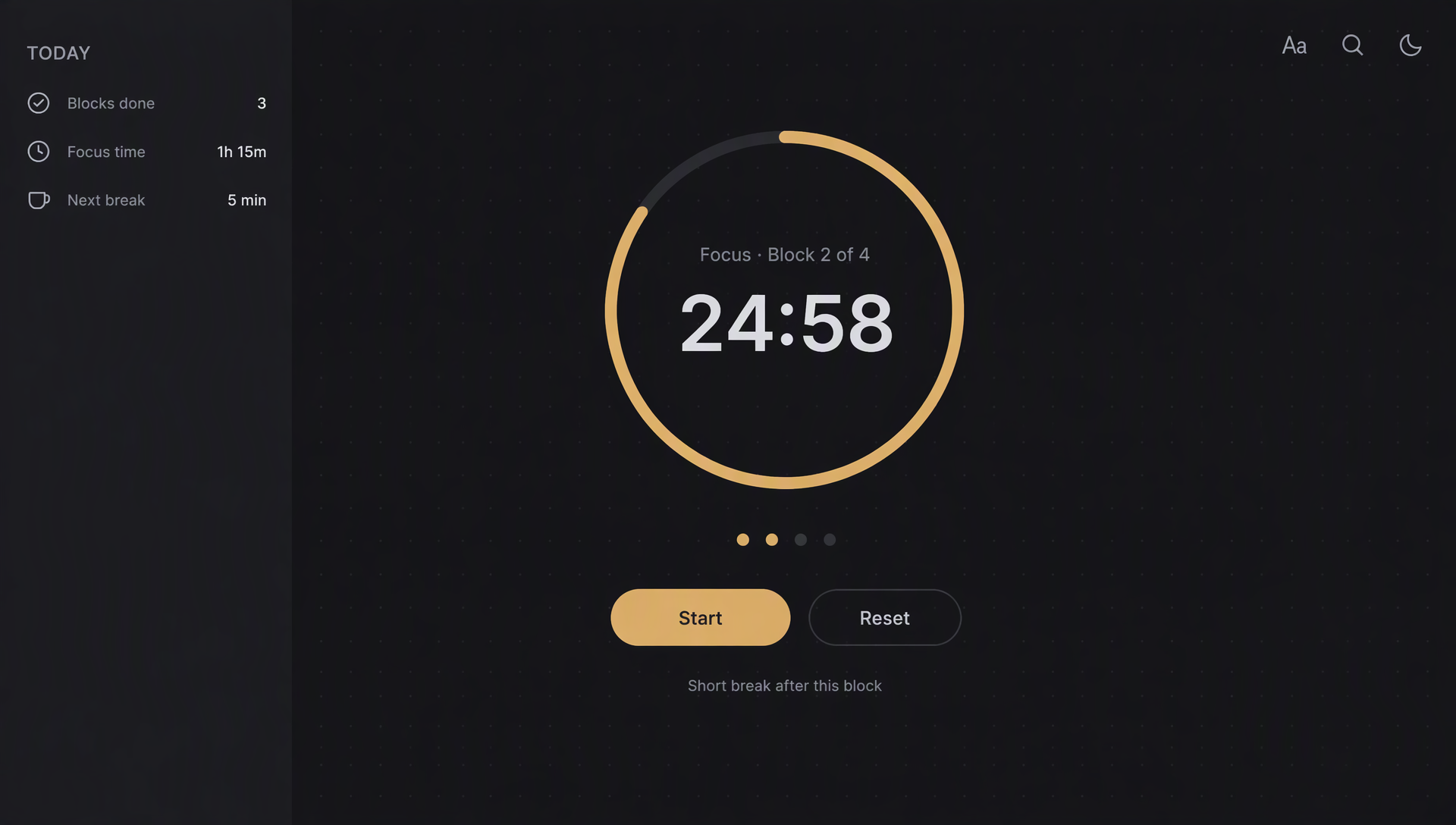
Dark Focus Timer

Focus · Block 1 of 4

25:00

Press Space to start or pause.

Runs in your browser · No account · Nothing is uploaded

What is the Focus Timer?

A quiet timer for work done in short, timed blocks.

Long stretches of work tend to blur together. The Focus Timer splits the day into blocks, usually 25 minutes of work followed by a short break, and every fourth block is followed by a longer rest. The screen stays dark and empty apart from the time left, so the timer does not compete with the work you are doing.

Set the block and break lengths in Settings if 25 and 5 minutes do not suit you. Write down the task you are on in the line above the clock. Press Start, and the ring drains as the time runs out. When a block ends, a soft chime plays and the timer waits for you to start the break.

Everything runs in this browser. The timer keeps its place if you reload the page, and it counts the blocks you finished today on this device. There is no account, no sign-in and nothing is sent to a server.

What the Focus Timer Does

Timed work and rest, with nothing else on the screen.

Timed blocks

Work in blocks of 25 minutes by default, or any length from 1 to 180 minutes. The ring shows how much of the block is left at a glance.

Short and long breaks

A short break follows each block. After the set number of blocks, a longer break gives your eyes and your head a real rest.

One line of task

Name what you are working on and it stays above the clock, so you return to the same task after each break.

Today’s count

See how many blocks you finished today and the total focus time. The count resets at midnight or when you press Reset today.

A soft chime

A short two-note chime marks the end of each block and break. Turn it off with the Sound button if you work in a quiet room.

Four tones

Classic, Warm, Blue and OLED black. Pick the tone that suits the light in the room and change it at any time.

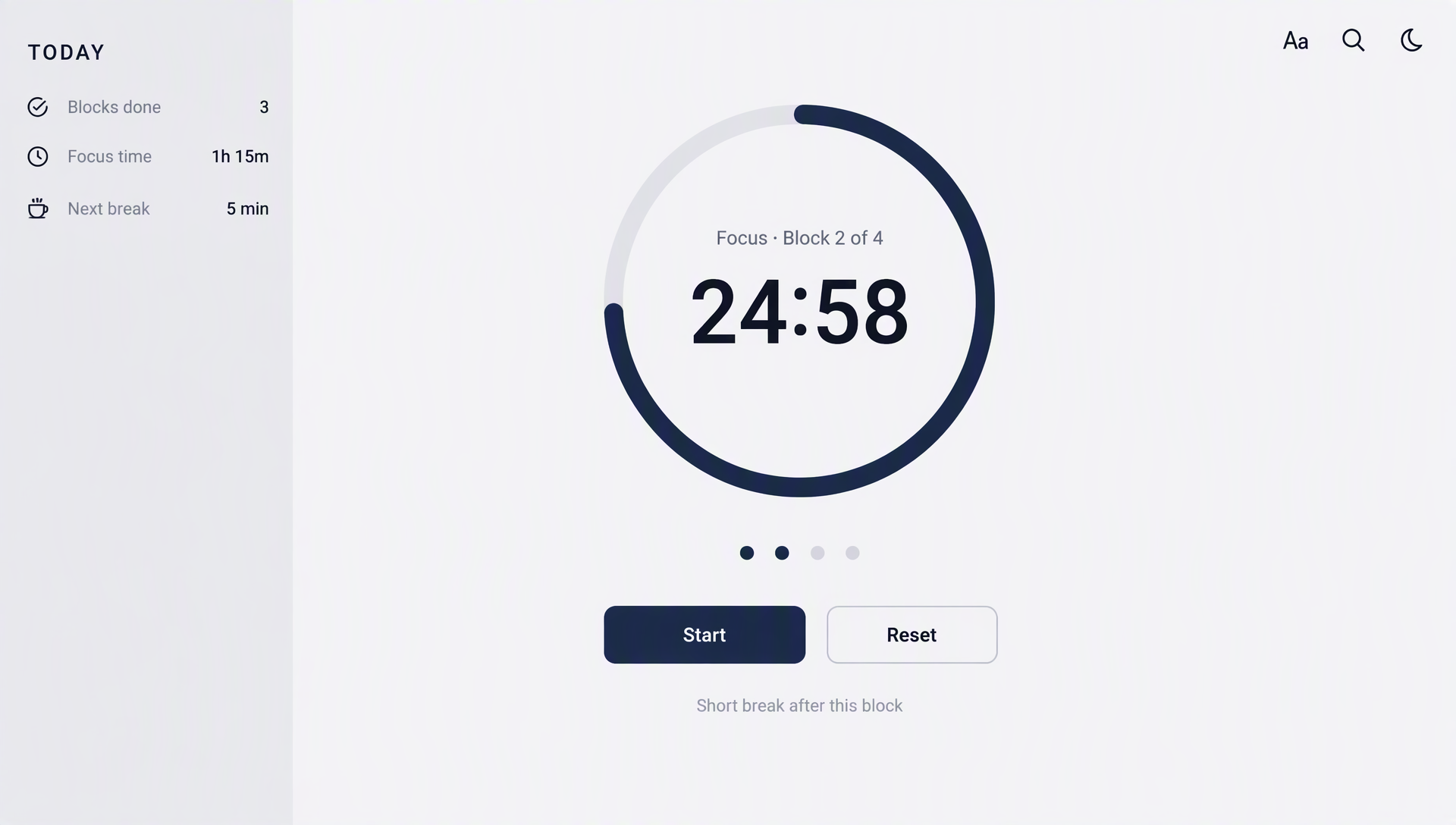
Light timer or dark timer

Drag the handle to compare the same timer on a bright page and on the dark page the timer uses.

A focus timer on a bright white page, with the time left in dark numbers
Light Dark

Why a quiet timer helps

A timer that flashes, counts up in red or fills the screen with colour pulls the attention it is supposed to protect. The slider above shows the same timer on both pages. Drag it slowly and notice that the numbers stay sharp on the dark page, while the bright page asks your eyes to adjust every time you look up.

The dark page changes only the colours. The digits, the ring and the buttons keep the same size and place, so the time is always where you expect it. Nothing moves on the screen except the ring, which drains a little with each second.

A timer is most useful when it sets a boundary and then gets out of the way. Choose one concrete task before starting a session, and decide what would count as useful progress when the time ends. During the break, look away from the display or change position rather than replacing work with another stream of notifications. A quieter timer cannot remove distractions for you, but it can give your session a simple rhythm without making the countdown itself the centre of attention.

Working in Timed Blocks

Practical habits for using the timer across a day or a week.

Choosing a block length

Twenty-five minutes is a good start because it is short enough to begin without hesitation. If you lose the thread before the end, try 15 minutes. For deep work that you can keep going for longer, 45 or 50 minutes can suit you. Keep the same length for a week before you change it, so you can judge it fairly.

Taking the breaks

A break is for moving, looking away from the screen and drinking some water. Stand up, look at something far away and do not open new tasks. When the chime plays, the timer waits for you, so the break starts when you press Start and not before.

Naming the task

Write a short, concrete task before you start, such as “Draft the second section” rather than “Work on the report”. A specific line makes it easier to know when a block is done, and it gives you a clear point to return to after the break.

Using the long break

The long break comes after a set number of blocks, four by default. Use it to step away from the desk properly, eat or walk outside. The count of blocks you finished today is kept in this browser, so you can see how the day went without keeping a separate log.

How to Start a Session

Three steps from an empty screen to your first finished block.

  1. Name the taskType what you are working on in the line above the clock. Keep it short and specific.
  2. Press StartThe ring begins to drain. Press Space at any time to pause or resume. Use Skip only when you want to move on early.
  3. Take the breakWhen the chime plays, stand up for the short break. After four blocks, take the long break, then press Start for the next block.

Frequently Asked Questions

Answers about the timer, the chime, and what the page keeps.

Do I need an account?

No. The timer works as soon as the page opens. There is no sign-up, no email and no subscription.

What happens if I reload the page?

The timer keeps running. The phase, the block number, the time left and the task line are saved in this browser, so a reload picks up where you were. If a block ended while the page was closed, it is counted when you come back.

Why does the chime not play?

Browsers allow sound only after you have interacted with the page. Press Start once and the chime will play at the end of the block. Check that the Sound button is pressed and that the device is not muted.

Does the timer keep running in a background tab?

The clock is calculated from the time the block started, so it stays accurate. Some browsers slow down background tabs, which can delay the chime by a few seconds. The page title shows the time left, so you can see it from another tab.

What does the timer save?

The block and break lengths, the tone and the Sound setting, the current phase and the count of blocks for today. All of it is stored in localStorage in this browser only. Reset today clears the count.

Does it work on a phone?

Yes. The timer fills the width of the screen, the settings sit under the clock, and the buttons stay large enough to press with a thumb.

Is it free to use?

Yes. There is no account, no word limit and no watermark.