
Most of the time, a page that stays bright has one of a few simple causes. Work through the steps below in order. Each one takes less than a minute.
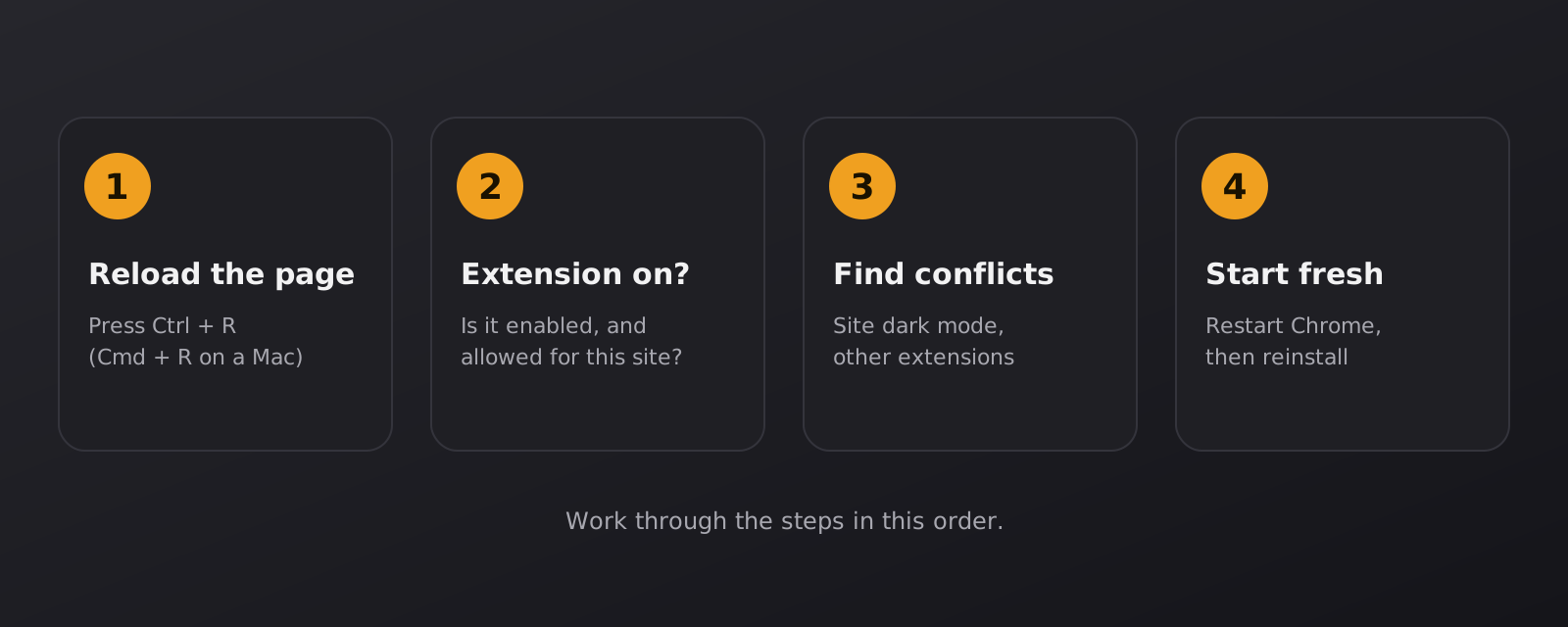
1. Reload the page
Extensions apply their changes when a page loads. If you installed the extension, switched it on or changed a setting while the page was already open, reload the tab with Ctrl + R (Cmd + R on a Mac). Many “not working” reports end here.
2. Check that the extension is on, and on for this site
Click the extension icon in the toolbar. If you do not see it, open the puzzle-piece menu and pin it. Make sure the extension is switched on. The extension has a white-list that lets you leave chosen sites untouched, so also check that the current site has not been added to it by mistake.
Then open chrome://extensions (or edge://extensions) and confirm that the extension is enabled there as well.
3. Look for pages that no extension can change
Browsers protect some pages, and no extension can change them. These include internal pages such as chrome:// settings, the Chrome Web Store and the new-tab page. If the site that stays bright is one of these, the browser is blocking the change, not the extension.
Local files are a related case. To darken a file opened from your computer, such as a saved web page, open the extension’s details in chrome://extensions and turn on Allow access to file URLs. For PDF files, the Dark PDF Reader on this site is usually the easier option.
4. Check for conflicts
- The site’s own dark mode. If a site already has a night theme, two dark modes can fight each other. Use one or the other and see which looks better.
- Other extensions. Another dark-mode, colour or style extension can interfere. Turn the others off, then reload the page.
- A different browser profile. Open the page in a new profile or a private window where the extension is allowed. If it works there, something in the first profile is the cause.
5. Restart and reinstall
If nothing helped, restart the browser and test again. As a last step, remove the extension and install it again from the Chrome Web Store or the Edge Add-ons store.
If it still does not work
Tell us about it. Send the address of the page, your browser and its version, and what you see, using our contact form. A screenshot of the problem helps us find the cause much faster.