How to Find Background Music from a Study Video or Reading Stream
Study streams, lo-fi mixes and long reading videos share one problem: the music is perfect, and nobody says what it is. Here is a short path from “what is this track?” to something you can actually read to.
1. Look for the title where creators usually leave it
Before you reach for any tool, spend two minutes on the page itself. Most study and reading videos name their music somewhere, it is just not always where you look first.
- The description. Open the full text, not the first two lines. Creators often add a “Music:” credit, a tracklist with timestamps or a link to a playlist.
- The audio credit. Some platforms show a music section under the description, and some videos print the track name on screen for a few seconds at the start or end.
- Pinned and top comments. Search the comments for words like “song”, “track” or “music”, or for a timestamp such as 12:40. Someone has almost always asked, and someone has usually answered.
- Live chat and stream panels. On a live reading stream, check the pinned message, the channel’s info panels and the chat. Some streams post the current track there.
If the title is in one of these places, you are done and can skip to step 4.
2. No title? Recognise the music from a clip
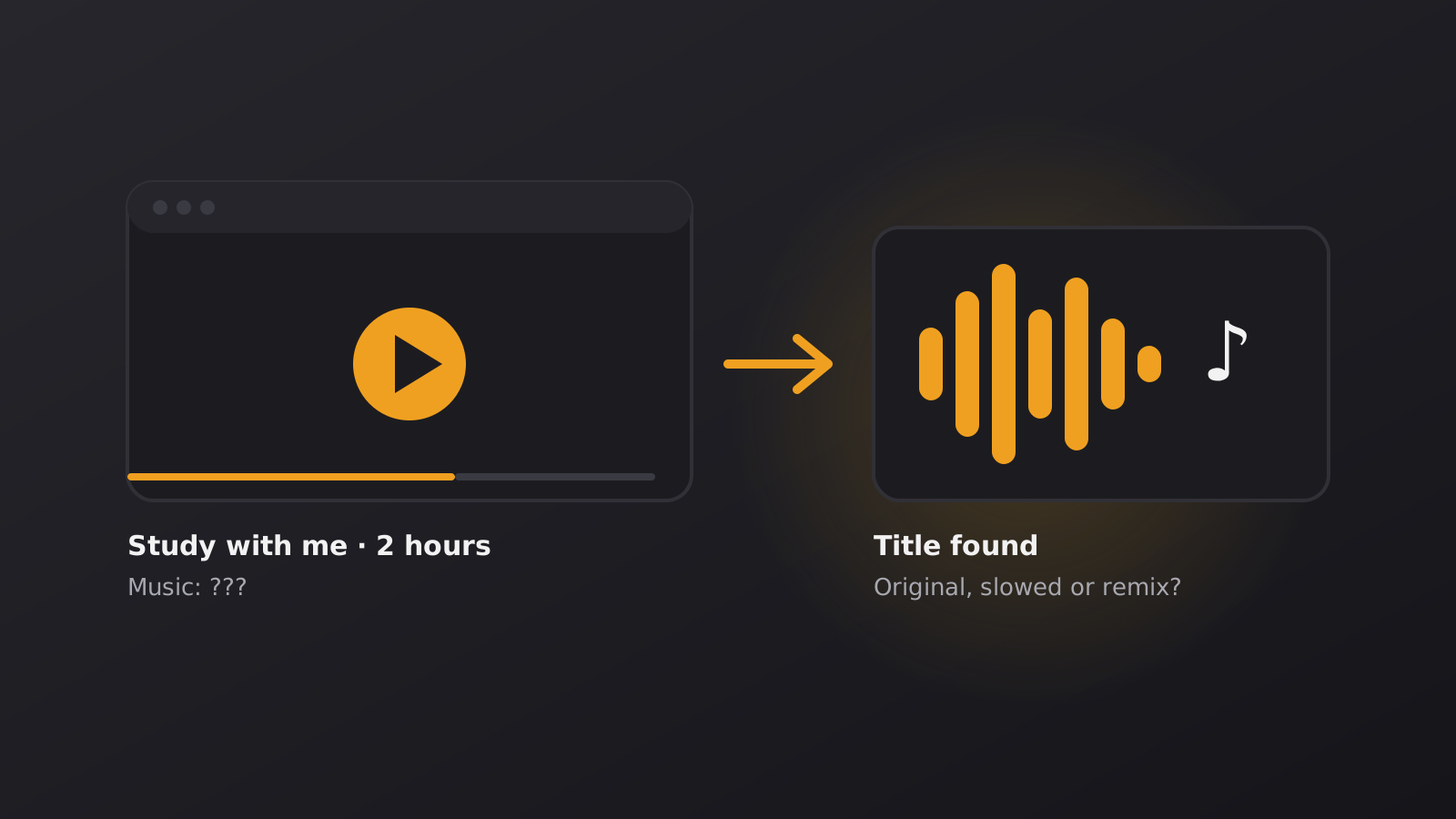
When the creator does not say, let the sound do the work. Our Music Identifier recognises a track from a short audio sample, so you do not need to know a single word of it. A few habits make the result better:
- Pick the clearest moment. Choose a stretch where the melody is front and centre, with no voice-over, no timer chime and no “welcome back” intro.
- Skip the ambience layer. Many study streams mix rain, cafe chatter or fire crackle under the music. If you can, pick a moment where those sounds are quiet.
- Keep the sound clean. Turn the volume up a little, reduce echo in the room, and avoid typing or talking while the clip plays.
- Try a second moment. If the first clip finds nothing, move to a different part of the video. Long mixes are often several tracks in a row.
Be aware that a lot of background music is made for libraries and streams and is not always easy to match. If nothing comes back, that is useful information too: the track may be unreleased or custom-made for the channel, and the creator is your best source.
3. Remember a few words? Search by lyrics
If the track has vocals and a line stuck in your head, you can skip the audio altogether. The Search by song title or lyrics page lets you type what you remember and look for a match.
- Type the words you are most sure of. Two or three distinctive words beat a long line you half remember.
- If you only caught the sound of a word, try a spelling that sounds like it. Misheard lyrics are the norm, not the exception.
- Add what else you know, such as the language or the mood, to narrow the list.
This only helps with vocal tracks. Most study music is instrumental, so for those, go back to step 2.
4. Check that you found the right version
Reading streams love edited music: slowed and reverb versions, sped-up edits, lo-fi flips, loops and long extended mixes. A match for the original song does not always mean it is the version you heard.
- Compare tempo and mood. If the video’s track is slower and dreamier than the result, search for the title plus “slowed”, “reverb” or “lo-fi remix”.
- Check the uploader. Remixes are usually credited to another artist. The video description or the remix’s own page often links back to the original.
- Look at the length. A three-minute song cannot be a two-hour loop. If the video repeats it, the loop is the creator’s edit, and the original is what you want for your own playlist.
- Prefer the official page. When you save the track, choose the artist’s or label’s own release where you can, so you get the version you meant.
5. Try it in a short reading session
Good music in a video does not guarantee good music for your own reading. A track that feels calm while you scroll can pull your attention away once you are deep in a page. So test it before you commit to a playlist.
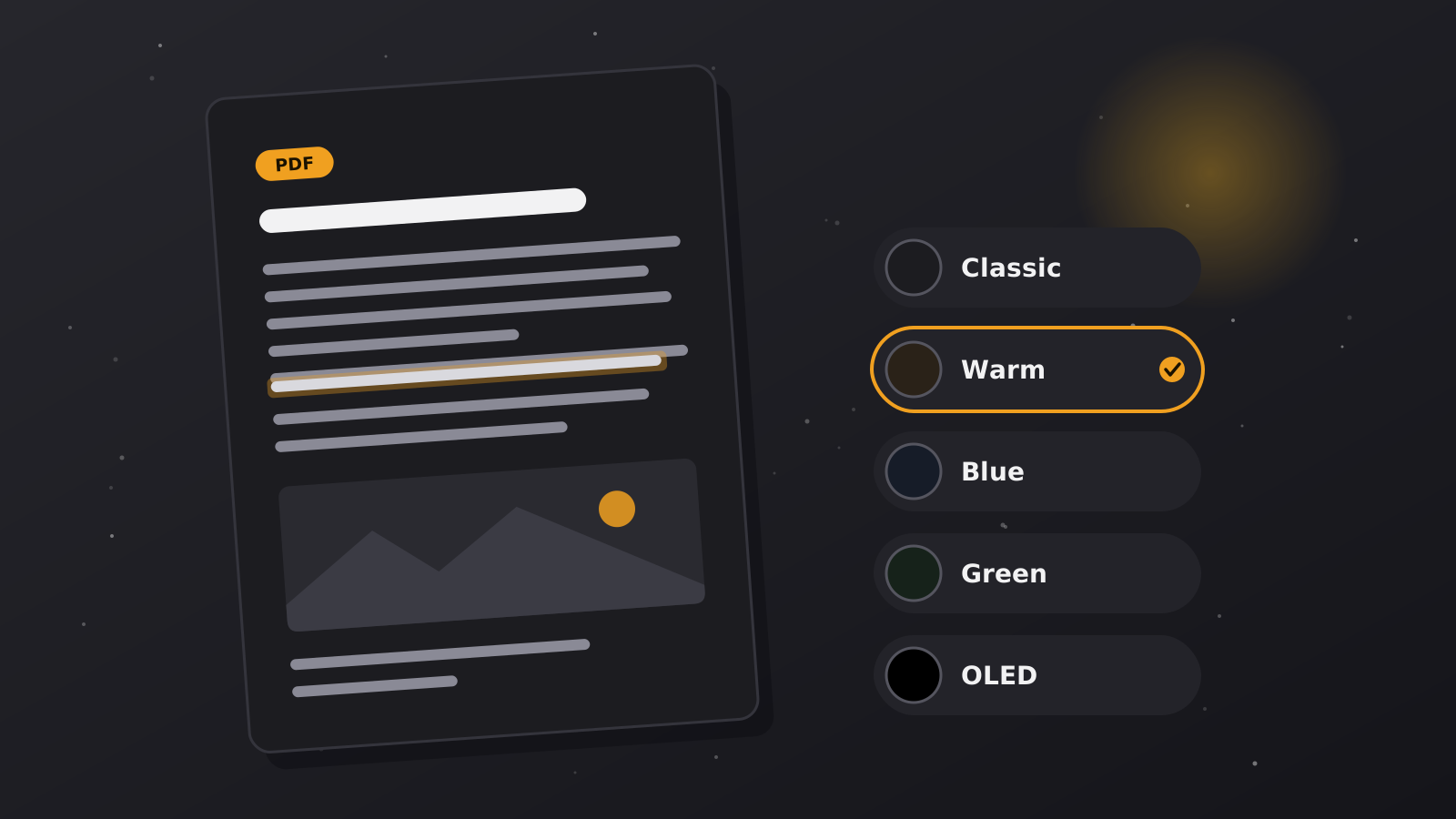
- Open something you need to read. A long article in the PDF Reader or a chapter in the EPUB Reader works well, and the dark page keeps the screen as quiet as the music.
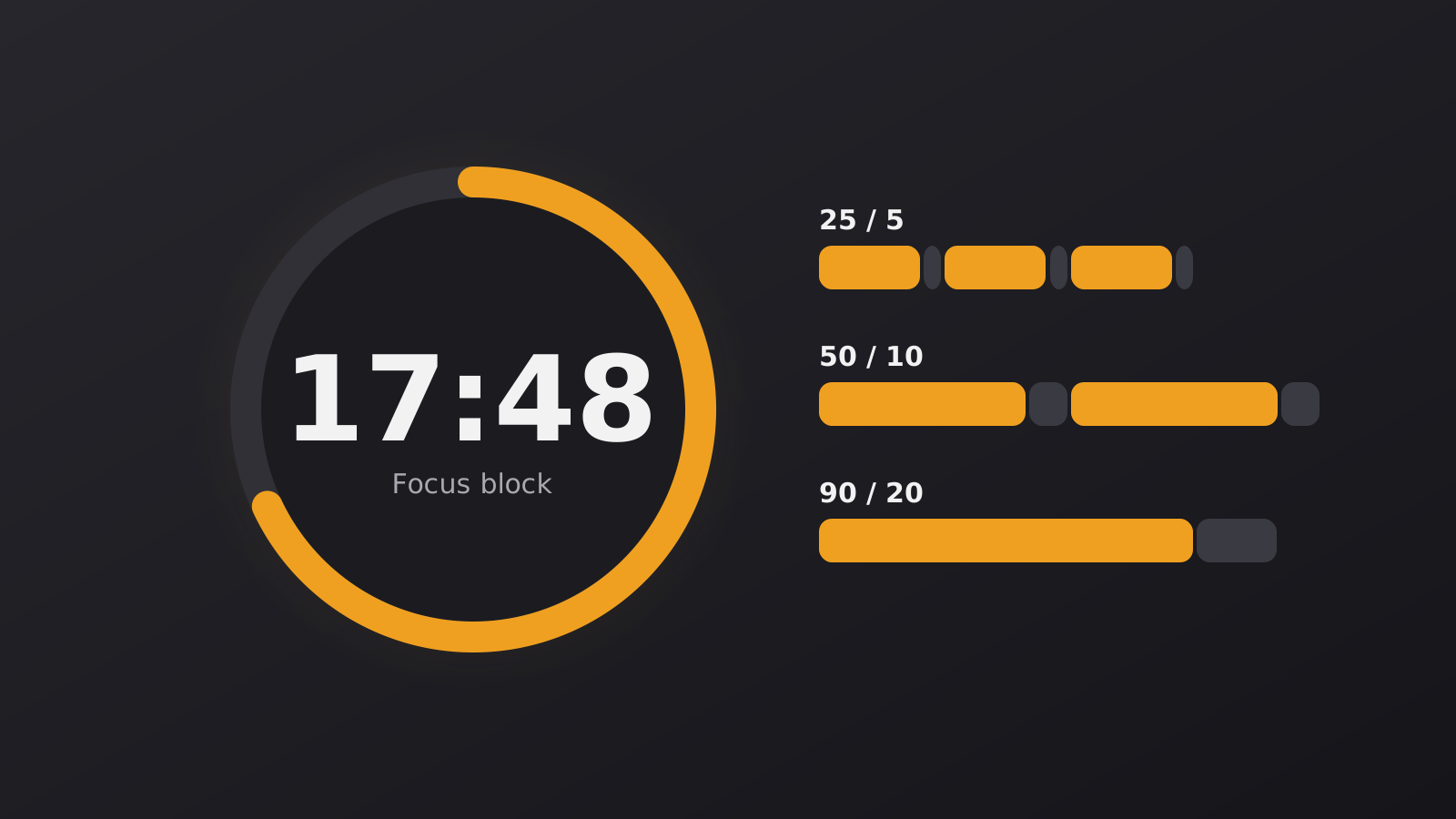
- Set a short block. Start the Focus Timer for 15 to 25 minutes. If you want to find the right length, our article on focus block length can help.
- Play the track at a low volume. It should sit behind your thoughts, not in front of them.
- Notice what happens. Did you re-read the same line? Did you start following the lyrics? Did you stop to change the song?
- Compare with silence. On your next block, read without music and see which one you finished with less effort.
Keep a short list of what works
When a track passes the test, write down its title and artist right away, ideally the correct version from step 4. A short list of three or four tracks that really work for you is worth more than an endless playlist, because you stop spending your reading time choosing what to play.
Make your screens a little calmer
Darken websites with the free extension, or open a document in a dark reader that keeps your file on your device.