Before You Read: Combine PDF Chapters and Fix Rotated Pages
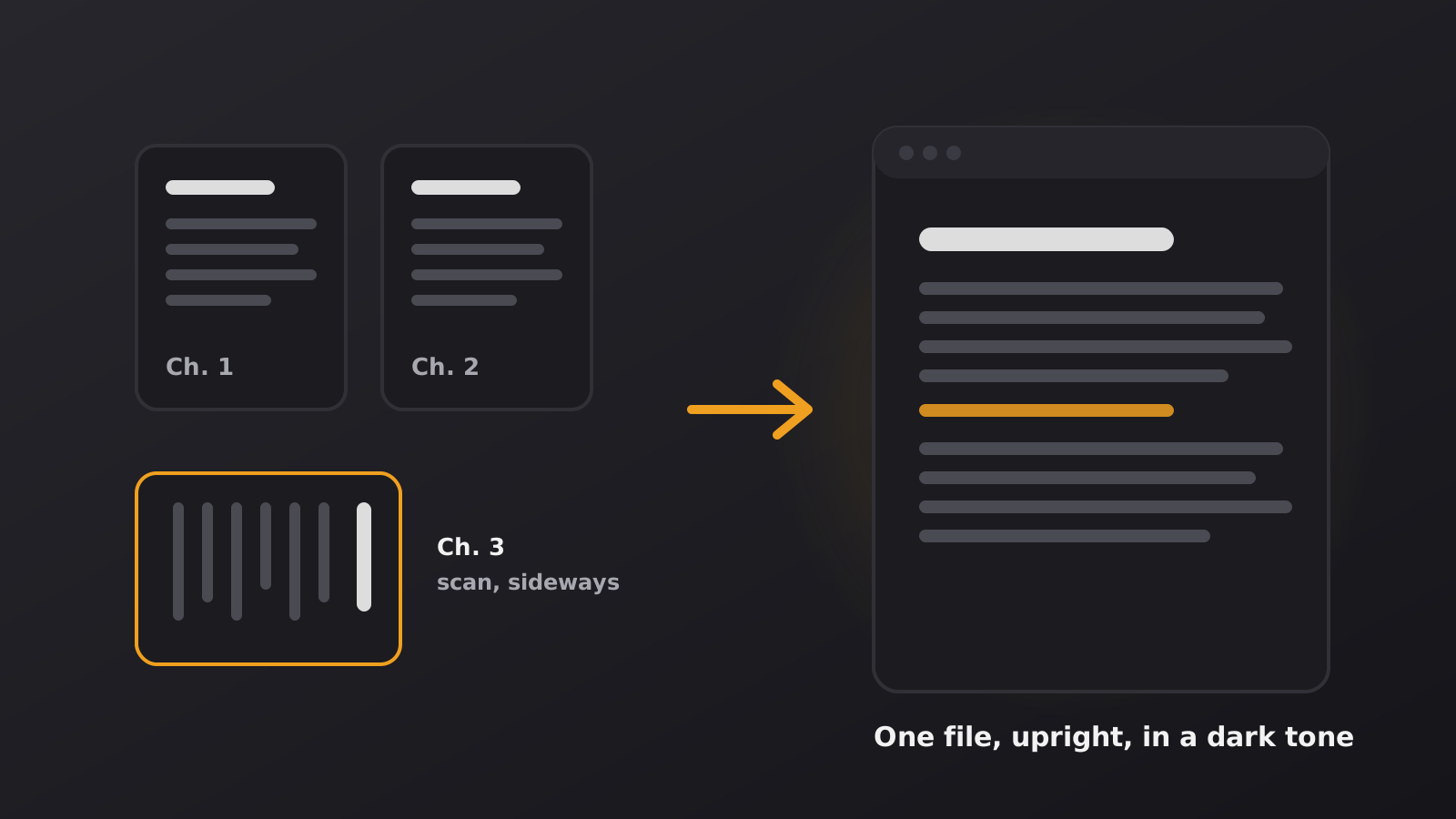
Long documents are rarely ready to read: chapters sit in separate files and scans come out sideways. A few minutes of preparation gives you one upright file you can read in a dark tone.
1. Merge chapters that live in separate files
Courses, reports and scanned books often arrive as one PDF per chapter. Reading that way means closing a file, finding the next one and losing your place every time. Combine them into a single document first.
A tool like Fenzory’s Merge PDF puts several PDFs into one file. Before you start, make the order easy to get right:
- Number the files. Rename them “01-introduction.pdf”, “02-method.pdf” and so on, so the right order is obvious in any list.
- Check for duplicates. Make sure a chapter is not included twice, for example as both a draft and a final version.
- Add the files in order. Then merge and keep the result open so you can look it over in step 3.
If the documents are confidential, read the tool’s privacy information before you upload anything.
2. Fix scans that are turned sideways
Scans and photographed pages often come out rotated: a landscape page on its side, or a whole chapter upside down. You can read them by tilting your head, but not for long.
A tool such as Rotate PDF turns the pages the right way up and gives you a corrected file. A simple order works well: merge first, then fix the rotation in the combined file, so you only have one document to check. If only one chapter is sideways, you can also rotate that chapter before merging.
3. Download the prepared copy and keep the originals
Download the merged and rotated file, and give it a name that says what it is, such as “course-notes-combined.pdf”. Keep the separate chapter files and the original scans exactly as they were. If a page is missing or in the wrong place, you can go back and redo the merge without searching for the source files.
- Scroll through the new file once and check that the chapters are in order.
- Look for pages that are still sideways or upside down.
- Check that the first and last pages of each chapter are there.
It is much easier to fix a mistake now than halfway through a long reading session.
4. Open the result in the Dark PDF Reader and choose a tone
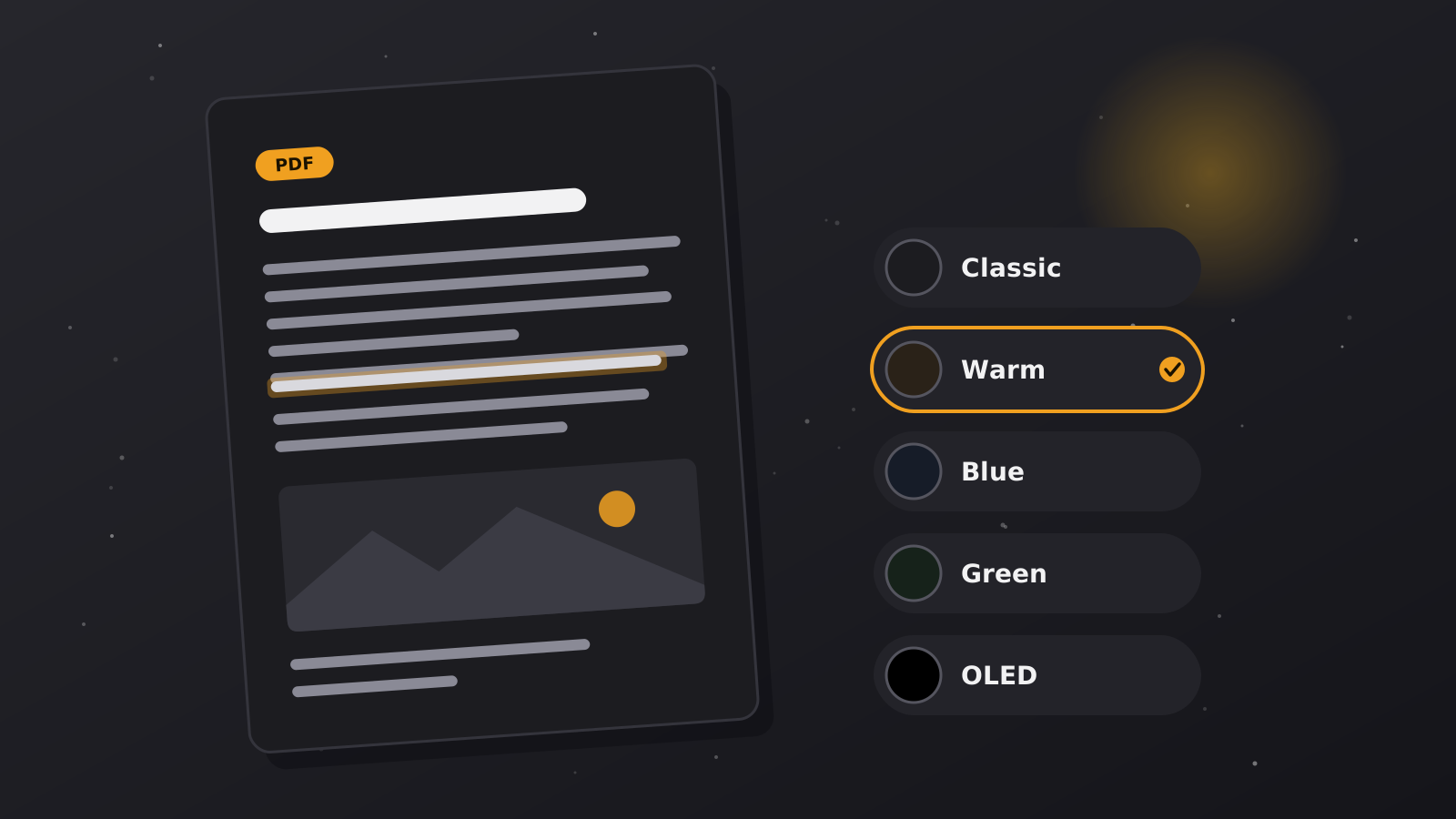
Now the document is ready to read. Open it in the Dark PDF Reader and pick the tone that feels comfortable: Classic, Warm, Blue, Green or OLED. The dark tone changes only how the page is shown, so the file you prepared is not changed.
- Zoom. Use Fit width, then adjust until the text is comfortable.
- Navigation. Open the page thumbnails to jump between chapters in the combined file.
- Search and highlight. A single file means a single search covers all the chapters.
Preparing the file takes a few minutes, and it saves you from opening and closing files in the middle of a chapter.
Make your screens a little calmer
Darken websites with the free extension, or open a document in a dark reader that keeps your file on your device.