Quiet Lecture, Bright PDF? Set Up a More Comfortable Study Session
A bright PDF on one side and a barely audible lecture on the other make a tiring combination. Here is a practical order of steps: make the notes comfortable first, then fix the sound, and keep the whole session sustainable.
1. Open your notes in the Dark PDF Reader
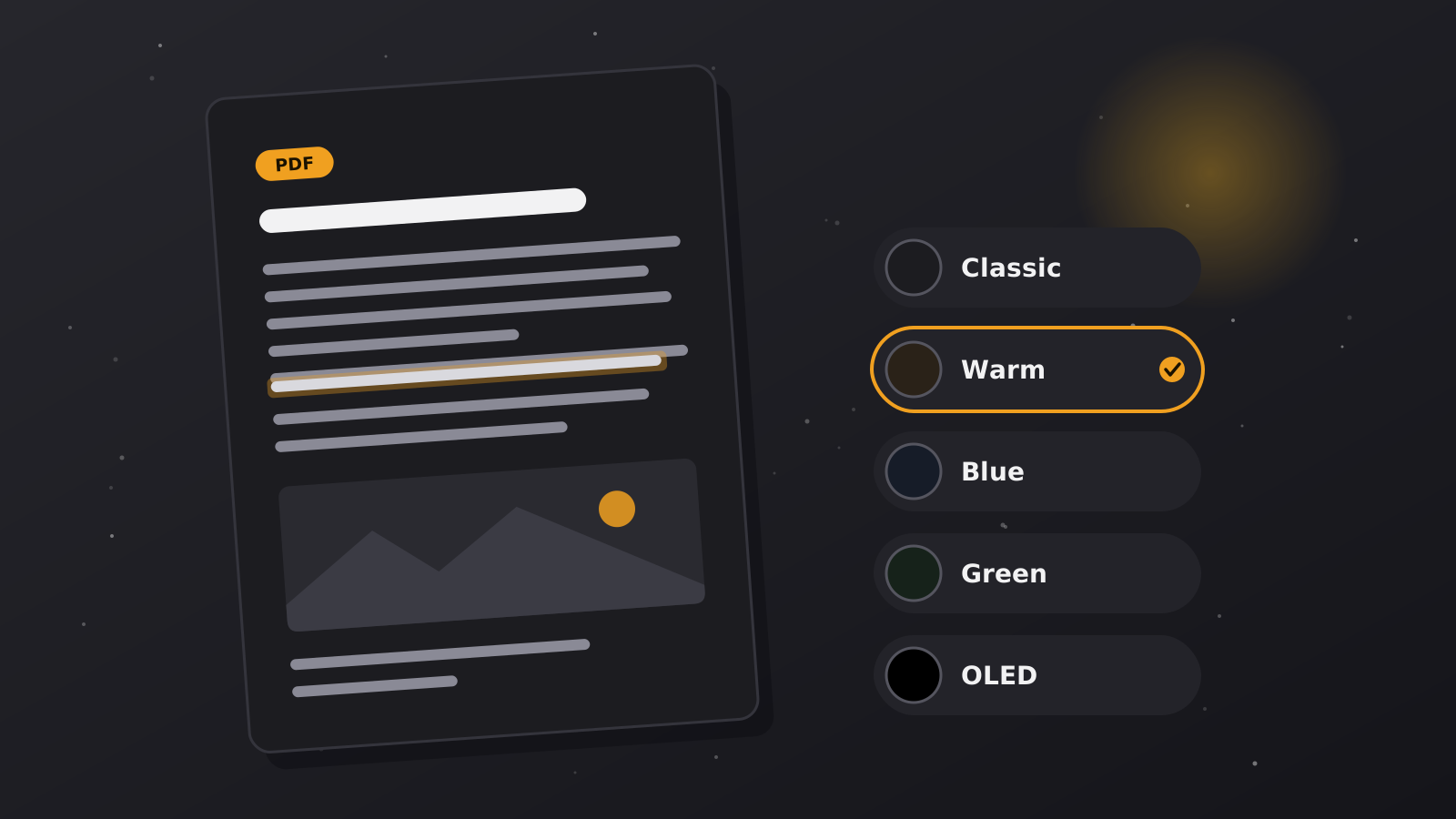
Start with the part you will be looking at the longest. Open your PDF in the Dark PDF Reader and the white sheet becomes a soft dark page, so the notes stop glaring while the lecture plays. The file is opened on your device, and the dark tone changes only how the page is shown. Your original PDF is not edited.
2. Set the tone, the zoom and the window layout
Spend two minutes here, because you will not want to adjust anything once the lecture has started.
- Tone. Try Classic, Warm, Blue, Green or OLED until the page feels comfortable. Many people find Warm gentler in the evening and OLED better in a dark room, but it is a matter of taste.
- Zoom. Use the zoom buttons or Fit width until you can read the smallest text in your notes without leaning toward the screen.
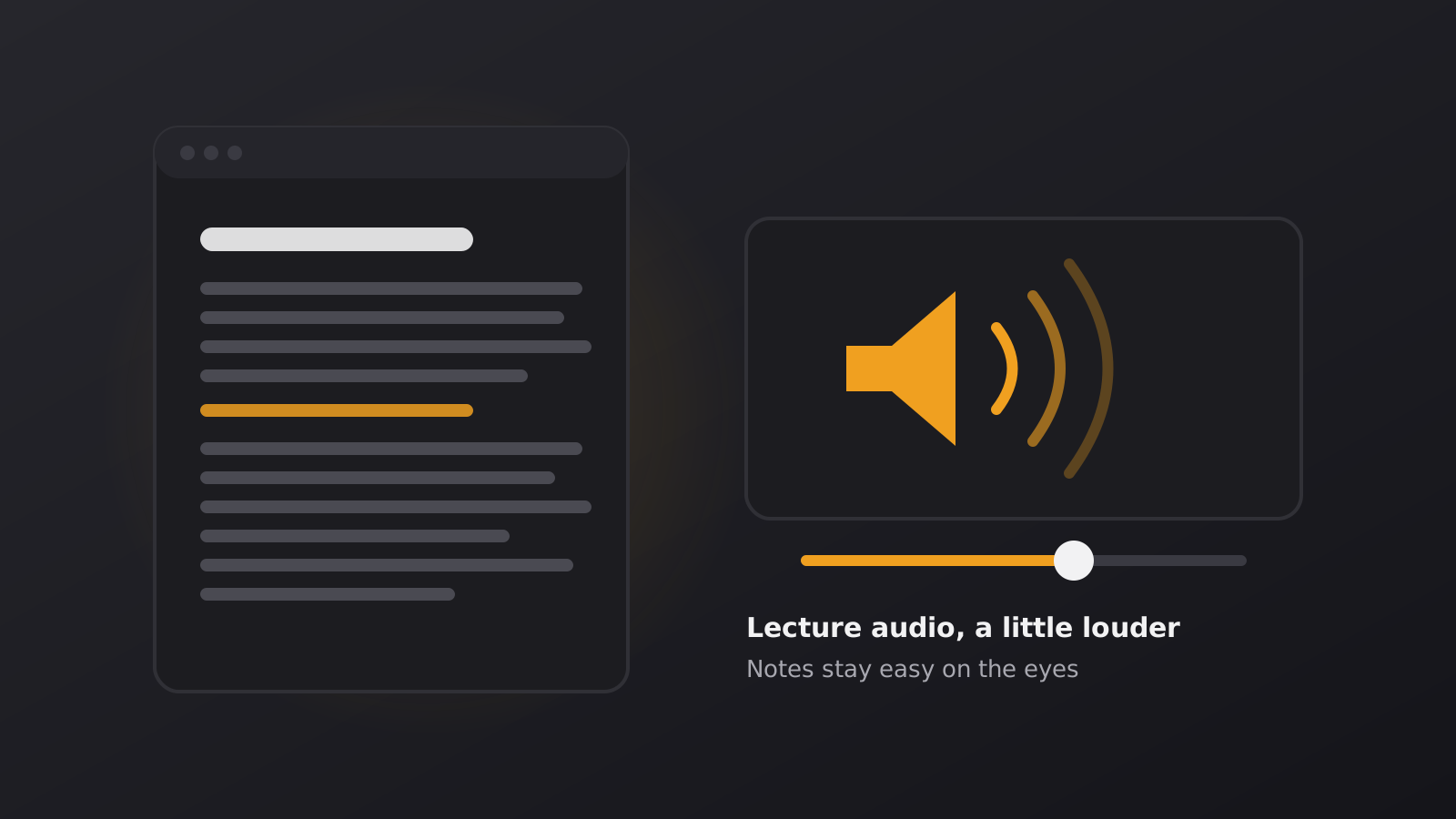
- Layout. Put the lecture player beside the PDF, so you glance sideways instead of switching tabs. On one screen, give the notes about 60 percent of the width and keep the player small but with its controls in reach. On two screens, use one for each.
- Navigation. Open the page thumbnails so you can jump to the slide the lecturer is talking about.
3. If the lecture is quiet, check the simple things first
A quiet lecture is not always a quiet recording. Before you change the audio itself, go through the volume controls in order:
- The volume slider in the player.
- The volume of your computer or phone.
- The output device. Headphones, speakers and Bluetooth devices often have their own volume level.
- The player’s own settings, or a different player. Some players handle a quiet file better than others.
It sounds obvious, but a player at half volume combined with a system at half volume is the most common reason a normal recording seems too quiet.
4. Still too quiet? Raise the level of the file
If the controls are at their maximum and the speaker is still hard to hear, the recording itself is quiet. For an audio or video file you have, such as a lecture you are allowed to keep or a recording from your own class, Sound Booster can raise its volume. For sound playing in a browser tab, a tab-audio extension can do a similar job without needing a file.
After boosting, it is worth checking the result. Audio Quality Check looks at measurable characteristics of a file, such as whether it has been pushed into overload (clipping). It does not tell you whether the speech is easy to understand, so listen to a minute of the result yourself as well.
5. Boost moderately
- Go in small steps. Stop as soon as the lecturer is comfortable to follow at a normal volume on your device.
- Watch for distortion. If the voice starts to crackle or sound harsh, you have gone too far. Distorted speech is more tiring than quiet speech.
- Know the limit. If words are still unclear, ask for a better recording, the slides or a transcript instead of boosting further.
- Protect your ears. Especially with headphones, avoid long sessions at a high volume.
6. Keep the original and take breaks
Always keep the original file and save the boosted version under a new name, for example “lecture-boosted”. That way you can go back if the result is not what you wanted, and you will not mistake one for the other later.
Then protect your attention. Start the Focus Timer for a block of study followed by a short break. During the break, look away from the screen and take your headphones off. If you want to choose the right length, read about how long a focus block should be.
A quick checklist
- Open the notes in the Dark PDF Reader and choose a tone you like.
- Set the zoom and put the player beside the PDF.
- Check the player volume, the device volume and the output device.
- If needed, raise the file’s level in small steps and check the result.
- Keep the original, and take breaks with the Focus Timer.
Make your screens a little calmer
Darken websites with the free extension, or open a document in a dark reader that keeps your file on your device.